8 min read • 1,629 words
Table of Contents
ToggleWhat Happens When Your SSD Fills Up?
Understanding what happens when your SSD fills up is crucial for maintaining optimal performance and longevity of your device. Solid State Drives (SSDs) are designed for speed and efficiency, but when they reach capacity, users may face a range of issues that can hinder their computing experience. This article will explore the implications of a full SSD, including performance degradation, increased wear on the drive, and potential system errors.
When an SSD is full, it struggles to find space for new data, which can lead to slower access times and data fragmentation. Additionally, operating systems may fail to update or install new applications, causing frustration for users. In some cases, system crashes or errors may occur when attempting to save files, making it essential to understand the importance of managing your SSD’s storage effectively. By learning about these potential issues, you can take proactive steps to ensure your SSD remains in top condition.
Understanding SSD Storage Limits
Solid State Drives (SSDs) have become a popular choice for data storage due to their speed and reliability. Unlike traditional Hard Disk Drives (HDDs), SSDs use flash memory to store data, which allows for faster read and write speeds. However, SSDs come with specific storage capacities that can fill up quickly, leading to potential performance issues. Understanding the storage limits of your SSD is crucial for maintaining optimal performance.
SSDs are available in various types, including SATA, NVMe, and M.2, each offering different speeds and capacities. Common capacities range from 128GB to several terabytes. As you utilize your SSD for applications, files, and system updates, it is essential to be aware of how quickly these storage limits can be reached.
Several common causes can lead to your SSD filling up:
- Large software installations and updates
- Accumulation of temporary files and caches
- Storage of high-resolution images and videos
- Multiple backups and system restore points
One of the significant differences between SSD and HDD storage management is how they handle data. SSDs require a certain amount of free space to operate efficiently. When an SSD is nearly full, it can lead to slower performance due to the way data is written and erased. In contrast, HDDs can manage data more flexibly without the same performance degradation when nearing capacity.
Monitoring your available storage is vital to avoid the pitfalls of a full SSD. Regularly checking your disk space can help you identify which files or applications are consuming the most storage. You can use commands like
df -hon Linux or check the storage settings on Windows to keep track of your SSD’s usage. By being proactive about your storage management, you can prevent the complications associated with what happens when your SSD fills up.
Immediate Effects of a Full SSD
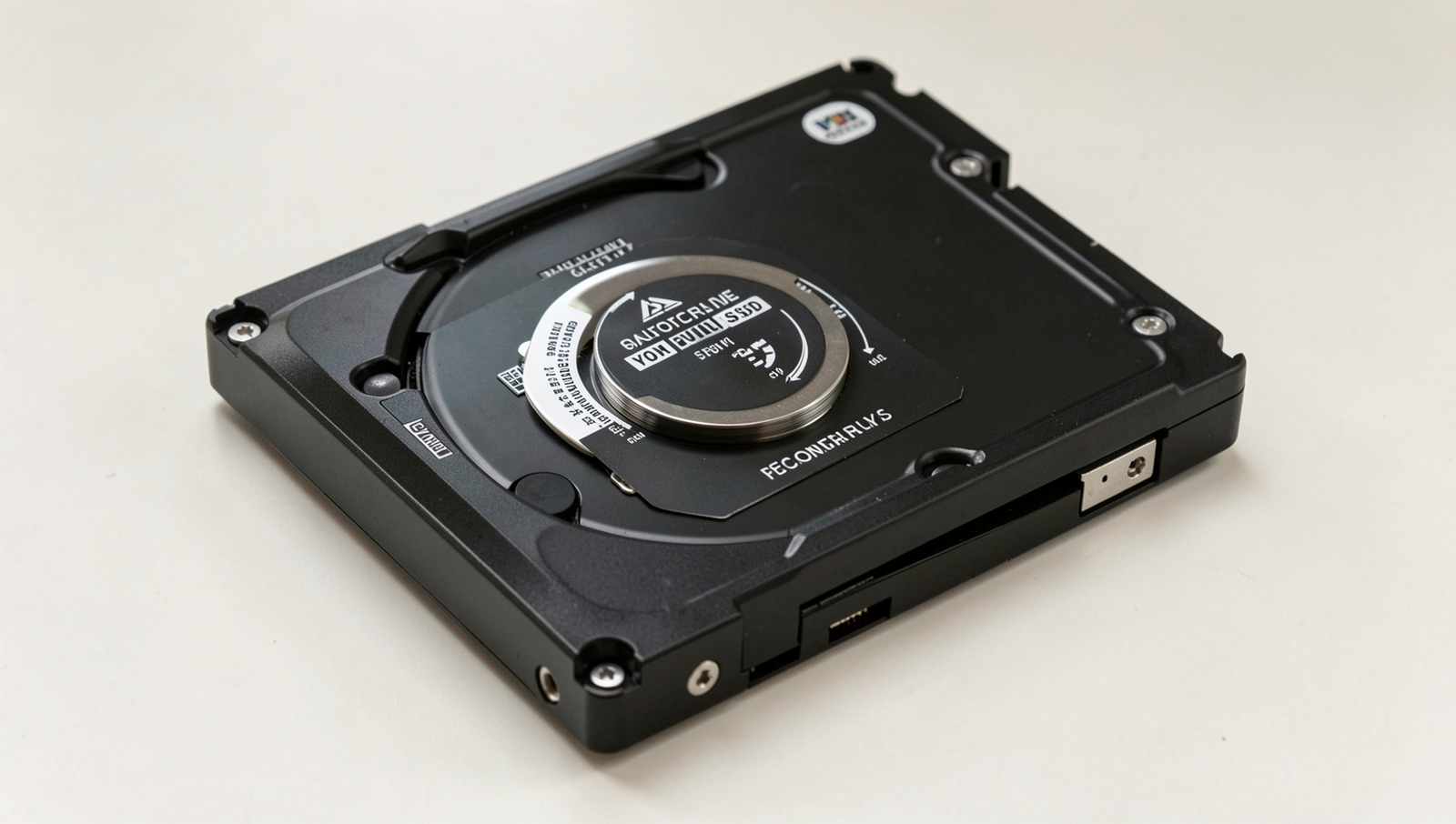
When your SSD reaches its capacity, several immediate effects can impact your system’s performance and usability. Understanding these consequences is crucial for maintaining a healthy computing environment. One of the most noticeable effects is system performance degradation. As the SSD fills up, the drive has less space to manage data efficiently. This can lead to slower read and write speeds, causing applications to lag and the operating system to respond sluggishly.
Another significant issue that arises is the inability to save new files or install applications. When there is no available space, attempts to save documents, download files, or install new software will fail. This can be particularly frustrating for users who rely on their devices for work or personal projects. For example, if you are working on a report and your SSD is full, you may find yourself unable to save your progress, leading to potential data loss.
Moreover, a full SSD poses risks of data corruption. When the drive is packed to capacity, the likelihood of file fragmentation increases, which can compromise the integrity of stored data. In some cases, users may encounter corrupted files that become unreadable or unusable, resulting in the loss of important information.
The impact on system updates and software functionality is another critical concern. Operating systems and applications often require free space to download and install updates. Without sufficient space, users may miss out on essential security patches and new features, leaving their systems vulnerable to threats. Additionally, some applications may fail to function correctly, leading to crashes or unexpected behavior.
- System performance degradation
- Inability to save new files or install applications
- Potential data corruption risks
- Impact on system updates and software functionality
In summary, understanding what happens when your SSD fills up is vital for maintaining system performance and data integrity. Regularly monitoring your storage space and managing files can help prevent these issues.
How to Free Up Space on Your SSD
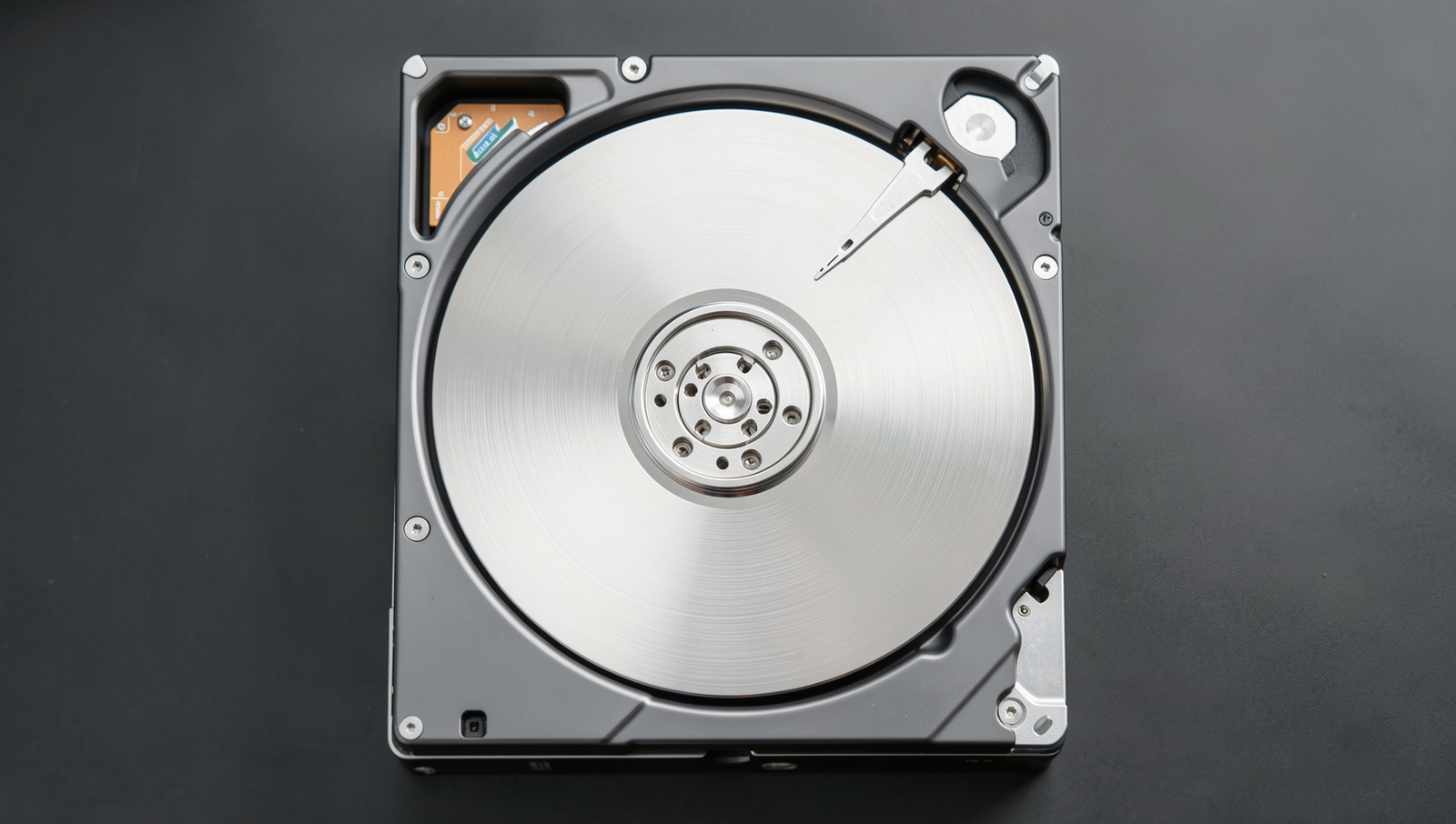
When your SSD fills up, it can lead to performance issues and hinder your ability to save new files. To avoid these complications, it is essential to regularly manage your storage. Here are some effective strategies to free up space on your SSD.
First, start by identifying and removing unnecessary files. This can include old downloads, duplicate files, or large media files that you no longer need. You can manually go through your folders or use tools to help identify large files. For example, you can use the following command to find large files on a Linux system:
find / -type f -size +100MNext, consider using disk cleanup tools and utilities that are built into your operating system. For Windows, the Disk Cleanup tool can help you remove temporary files, system files, and more. To access it, simply search for “Disk Cleanup” in the Start menu. On macOS, you can use the Storage Management feature by clicking on the Apple menu, selecting “About This Mac,” and then navigating to the “Storage” tab.
Another effective method is to move files to external storage or cloud solutions. External hard drives and USB flash drives can provide additional storage for large files, while cloud services like Google Drive, Dropbox, or OneDrive allow you to store files online. This not only frees up space on your SSD but also provides a backup for your important documents.
Lastly, uninstalling unused applications can significantly free up space. Many applications take up a considerable amount of storage, and if you haven’t used them in a while, it may be time to remove them. On Windows, you can uninstall applications through the Control Panel, while on macOS, you can drag them to the Trash.
By following these steps, you can effectively manage your SSD storage and prevent the issues that arise when your SSD fills up.

Preventive Measures for SSD Management
To ensure optimal performance and longevity of your SSD, it is crucial to adopt preventive measures for effective SSD management. Regularly monitoring your SSD storage usage is the first step in avoiding the pitfalls of a filled-up drive. By keeping an eye on how much space is being utilized, you can take action before reaching critical levels. Various tools and software applications can help you track your storage usage effectively.
Setting up alerts for low storage is another proactive approach. Many operating systems and third-party applications allow you to configure notifications that will inform you when your SSD is nearing its capacity. This way, you can take immediate action to free up space or upgrade your storage before it becomes a problem. For instance, you can use built-in system tools or install software like WinDirStat or TreeSize to visualize your disk usage and identify large files or folders.
Best practices for file organization can also contribute significantly to SSD management. Organizing files into folders based on categories or usage frequency can help you quickly locate what you need and determine what can be deleted or archived. Regularly cleaning out unnecessary files, such as temporary files, downloads, and old backups, can free up valuable space. Consider implementing a routine where you review and clean your SSD every month.
- Use cloud storage solutions for files that are not frequently accessed.
- Offload large media files to external hard drives or NAS (Network Attached Storage).
- Utilize file compression tools to reduce the size of large files.
If you find that your SSD is consistently filling up, it may be time to consider upgrading its capacity or using additional storage solutions. Many modern SSDs come in various sizes, and upgrading to a larger capacity SSD can provide a significant boost in performance and storage space. Alternatively, external SSDs or traditional hard drives can serve as supplementary storage, allowing you to keep your primary SSD uncluttered and efficient.
Conclusion
Understanding what happens when your SSD fills up is crucial for maintaining optimal performance and longevity of your storage device. When an SSD reaches its capacity, it can lead to significant slowdowns, as the drive struggles to find space for new data. This can affect not only the speed of file transfers but also the overall responsiveness of your operating system. Additionally, a full SSD can hinder essential system updates and application installations, potentially leaving your device vulnerable to security risks.
To prevent these issues, it is advisable to regularly monitor your SSD’s storage levels and manage your files effectively. Consider utilizing cloud storage solutions or external drives to offload less frequently accessed data. By staying proactive about your storage needs, you can ensure that your SSD remains efficient and reliable, allowing you to enjoy the benefits of fast data access without interruptions.
Frequently Asked Questions
What happens when my SSD is full?
When your SSD is full, it can no longer store new data, leading to potential errors when trying to save files. The system may also slow down