7 min read • 1,509 words
Table of Contents
ToggleThe Secret Behind Random PC Restarts
Experiencing random PC restarts can be both frustrating and disruptive, especially when you’re in the middle of an important task. Understanding the secret behind these unexpected shutdowns is crucial for maintaining the health and performance of your computer. In this article, we will explore the various factors that can lead to random restarts, including overheating due to dust buildup, faulty power supply units (PSUs), and corrupted system files. By identifying these issues, you can take proactive steps to prevent further disruptions.
Moreover, we will discuss how incompatible hardware or drivers can contribute to system instability, as well as the role of malware infections in triggering random restarts. By the end of this article, you will have a clearer understanding of the potential causes behind random PC restarts and practical solutions to keep your system running smoothly.
Understanding Random PC Restarts
Random PC restarts can be a frustrating experience for users, often occurring without warning and disrupting important tasks. These unexpected shutdowns can be defined as a situation where a computer reboots itself without any user intervention or prior indication of a problem. This phenomenon can stem from various underlying issues, making it essential to understand the root causes.
Common symptoms of random PC restarts include sudden loss of power, the computer displaying a blue screen of death (BSOD), or the system freezing before rebooting. Users often report feelings of confusion and frustration, especially when they lose unsaved work. For instance, a gamer might find their progress wiped out mid-session, while a professional could lose critical documents during a presentation.
- Unexpected shutdowns can lead to data loss.
- Frequent restarts may cause hardware wear and tear.
- Users may experience decreased productivity due to interrupted workflows.
The impact on productivity can be significant, as users may find themselves spending more time troubleshooting than completing their tasks. This can lead to missed deadlines and increased stress levels. Therefore, diagnosing the issue is crucial. Identifying whether the cause is hardware-related, such as a failing power supply or overheating components, or software-related, like corrupted drivers or malware, is essential for a proper resolution.
In conclusion, understanding the secret behind random PC restarts involves recognizing the symptoms, acknowledging the potential impacts, and prioritizing diagnosis to restore stability and efficiency to your computing experience.
Common Causes of Random Restarts
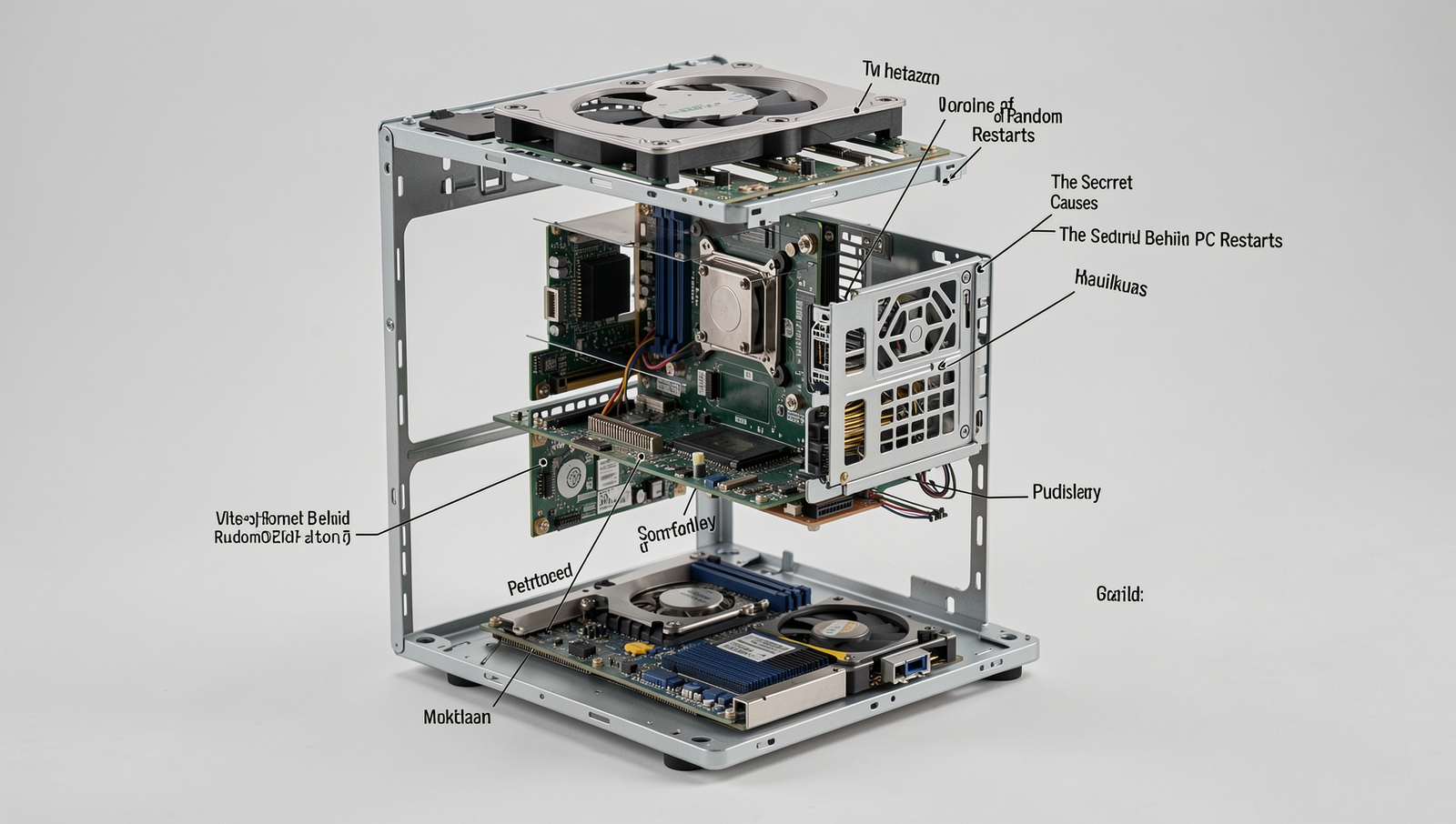
Understanding The Secret Behind Random PC Restarts requires an examination of various factors that can lead to unexpected shutdowns. One of the most prevalent causes is hardware issues. For instance, faulty RAM can lead to system instability, causing the computer to restart without warning. Additionally, overheating components, such as the CPU or GPU, can trigger automatic shutdowns to prevent damage. Regularly cleaning the internal parts of your PC and ensuring proper ventilation can help mitigate this issue.
Another significant factor is software conflicts. Incompatible drivers or recently installed software can create instability within the operating system. For example, if a new graphics driver is not compatible with the existing operating system, it may lead to random restarts. Keeping your software updated and ensuring compatibility can help reduce these occurrences.
Power supply problems are also a common culprit. Insufficient wattage from the power supply unit (PSU) can lead to random restarts, especially when the system is under heavy load. It is essential to ensure that your PSU meets the power requirements of all your components. If you suspect power issues, you can check the wattage requirements of your hardware and compare them to your PSU’s output.
Lastly, malware or virus infections can cause erratic behavior in your system, including random restarts. Running regular antivirus scans and keeping your security software up to date can help protect your system from these threats.
- Faulty RAM
- Overheating components
- Incompatible drivers
- Insufficient power supply
- Malware infections
By identifying and addressing these common causes, you can significantly reduce the likelihood of random PC restarts.
Diagnosing the Problem
When faced with the perplexing issue of random PC restarts, the first step in diagnosing the problem is to check system logs for errors. Most operating systems maintain logs that can provide insights into what might be causing the restarts. For Windows users, the Event Viewer is a valuable tool. You can access it by typing
eventvwrin the Run dialog. Look for critical errors or warnings that coincide with the times of the unexpected restarts.
Another effective method is to run hardware diagnostics tools. Many manufacturers provide built-in diagnostics that can be accessed during the boot process. For example, Dell users can press
F12at startup to access the diagnostics menu. These tools can help identify failing components such as RAM or hard drives.
Testing the power supply and connections is also crucial. An unstable power supply can lead to random restarts. Ensure that all connections are secure and consider using a multimeter to check the voltage output of the power supply. If you suspect the power supply is faulty, replacing it with a known good unit can help determine if it’s the source of the problem.
Lastly, using safe mode can help isolate software issues. Booting into safe mode loads only essential drivers and services, which can help identify if a third-party application is causing the restarts. To enter safe mode on Windows, press
F8during startup and select the safe mode option. If the restarts cease in safe mode, it may indicate a software conflict that needs further investigation.
Solutions and Preventive Measures
To tackle the issue of random PC restarts effectively, it is essential to implement a series of solutions and preventive measures. These steps not only help in identifying the root cause but also ensure the longevity and stability of your computer system.
- Updating Drivers and Software Regularly: One of the most crucial steps is to keep your drivers and software up to date. Outdated drivers can lead to compatibility issues and system instability. Regularly check for updates through your operating system or the manufacturer’s website. You can use the following command to update your system:
sudo apt update && sudo apt upgradeFor Windows users, accessing the Device Manager and checking for driver updates can be beneficial.
- Ensuring Proper Cooling and Ventilation: Overheating is a common cause of unexpected restarts. Ensure that your PC has adequate cooling and ventilation. Clean dust from fans and vents regularly, and consider using additional cooling solutions if necessary. Monitoring temperatures can be done using software like HWMonitor.
- Replacing Faulty Hardware Components: If you suspect hardware issues, run diagnostics to identify faulty components. Memory (RAM) and power supply units (PSUs) are often culprits. Tools like MemTest86 can help in testing RAM integrity.
- Implementing Regular System Backups: To safeguard your data against unexpected restarts, set up regular system backups. This can be done using built-in tools or third-party software, ensuring that your files are secure even if the system fails.
By following these preventive measures, you can significantly reduce the likelihood of experiencing random PC restarts and maintain a stable computing environment.
Conclusion
In summary, understanding the secret behind random PC restarts is crucial for maintaining a stable and efficient computing experience. These unexpected shutdowns can stem from various issues, including hardware malfunctions, overheating, or software conflicts. By identifying the root cause, users can take proactive measures to prevent future occurrences. Regular maintenance, such as cleaning dust from components and updating drivers, plays a significant role in ensuring system reliability.
Furthermore, if random restarts persist despite troubleshooting efforts, it may be beneficial to consult with a professional technician. They can provide insights and solutions tailored to specific hardware configurations. Ultimately, addressing the secret behind random PC restarts not only enhances performance but also prolongs the lifespan of your system. By staying informed and vigilant, users can enjoy a seamless computing experience without the frustration of unexpected interruptions.
Frequently Asked Questions
What causes random PC restarts?
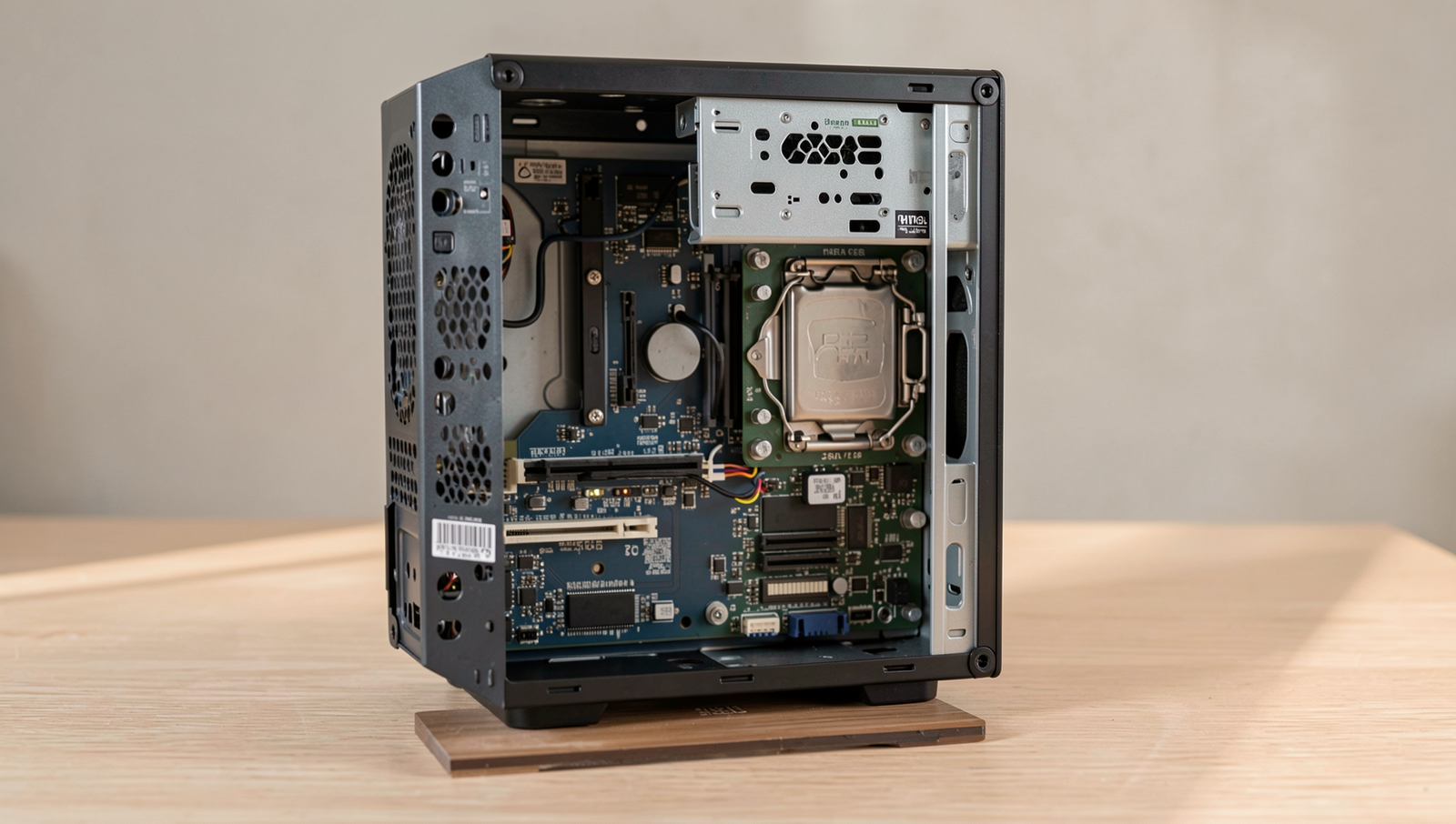
Random PC restarts can be caused by various factors, including hardware failures, overheating, power supply issues, or software conflicts. Faulty RAM, corrupted drivers, and even system updates can trigger unexpected restarts, disrupting your workflow and causing frustration.
How can I prevent random restarts?
To prevent random restarts, ensure your PC is well-ventilated and free from dust. Regularly update your operating system and drivers, check for hardware issues, and consider using a surge protector to safeguard against power fluctuations that may cause instability.
Is a random restart a sign of a serious problem?
While occasional random restarts may not indicate a serious issue, frequent occurrences can signal underlying problems. These may include hardware malfunctions or software conflicts that require immediate attention to avoid potential data loss or system failure.
Can malware cause random restarts?
Yes, malware can indeed cause random restarts. Malicious software may interfere with system processes, leading to instability. Regularly scanning your PC with reputable antivirus software can help detect and remove malware, reducing the risk of unexpected restarts.