8 min read • 1,641 words
Table of Contents
ToggleWhat Your Browser Remembers About You
Have you ever wondered what your browser remembers about you? Understanding this can be crucial for maintaining your privacy and enhancing your online experience. Browsers store various types of data, including cookies, browsing history, and form information, all of which can significantly impact how you interact with the web. This article will delve into the different elements that your browser retains and why it matters for your online activities.
By exploring what your browser remembers, you’ll learn how cookies help save your preferences and login details, making it easier to navigate your favorite sites. Additionally, we’ll discuss how browsing history enables quick access to previously visited pages and how local storage can track user behavior even after the browser is closed. Finally, we’ll touch on browser fingerprinting and its implications for user identification without relying on cookies.

Understanding Browser Storage
When you use the internet, your browser stores various types of data to enhance your experience. This data can be categorized into several types of storage: cookies, local storage, and session storage. Each type serves a unique purpose and operates differently, contributing to the overall functionality of web applications.
- Cookies: These are small pieces of data that websites store on your device. Cookies are primarily used for session management, personalization, and tracking. For example, when you log into a website, a cookie may store your login information to keep you authenticated during your session.
- Local Storage: This storage allows websites to store data persistently on your device. Unlike cookies, local storage can hold larger amounts of data and does not expire unless explicitly deleted. A practical example is a web application that saves user preferences, such as theme settings or language choices, so they remain consistent across sessions.
- Session Storage: Similar to local storage, session storage is used to store data temporarily. However, it only lasts for the duration of the page session. Once you close the tab or browser, the data is lost. This can be useful for storing data that is only relevant while the user is actively using the page, such as form inputs that should not be saved permanently.
Understanding the differences between persistent and temporary storage is crucial. Persistent storage, like local storage and cookies, retains information even after the browser is closed, while temporary storage, such as session storage, is cleared when the session ends.
Security implications also arise from browser storage. Cookies can be exploited for tracking users across different sites, while local and session storage can be vulnerable to cross-site scripting (XSS) attacks. Therefore, it’s essential to be aware of what your browser remembers and take steps to manage this data effectively.

Cookies: The Small Files That Track You
Cookies are small text files that websites store on your device when you visit them. Their primary purpose is to remember information about you, which can enhance your browsing experience. For instance, cookies can keep you logged into your favorite websites, remember your preferences, and even track your activity across different sites. This functionality is crucial for providing a personalized experience, but it also raises privacy concerns.
Cookies are created when a website sends a request to your browser, which then stores the cookie on your device. Each time you revisit the site, your browser sends the cookie back to the server, allowing the website to recognize you. This process is seamless and typically goes unnoticed by users. However, it is essential to understand how cookies are categorized and their implications for privacy.
- Session Cookies: These cookies are temporary and are deleted once you close your browser. They are used to maintain your session while you navigate a website, such as keeping items in your shopping cart.
- Persistent Cookies: Unlike session cookies, persistent cookies remain on your device for a set period or until you delete them. They are often used for remembering login details or user preferences across multiple visits.
- Third-Party Cookies: These cookies are created by domains other than the one you are visiting. They are commonly used by advertisers to track your browsing habits across different websites, enabling targeted advertising.
Cookies can be used for tracking and personalization by collecting data on your browsing behavior. For example, if you frequently visit travel websites, cookies may help these sites suggest relevant deals and destinations based on your past searches. While this can enhance your user experience, it also means that your online activity is being monitored, which raises important questions about privacy and data security.
Local and Session Storage: What You Need to Know
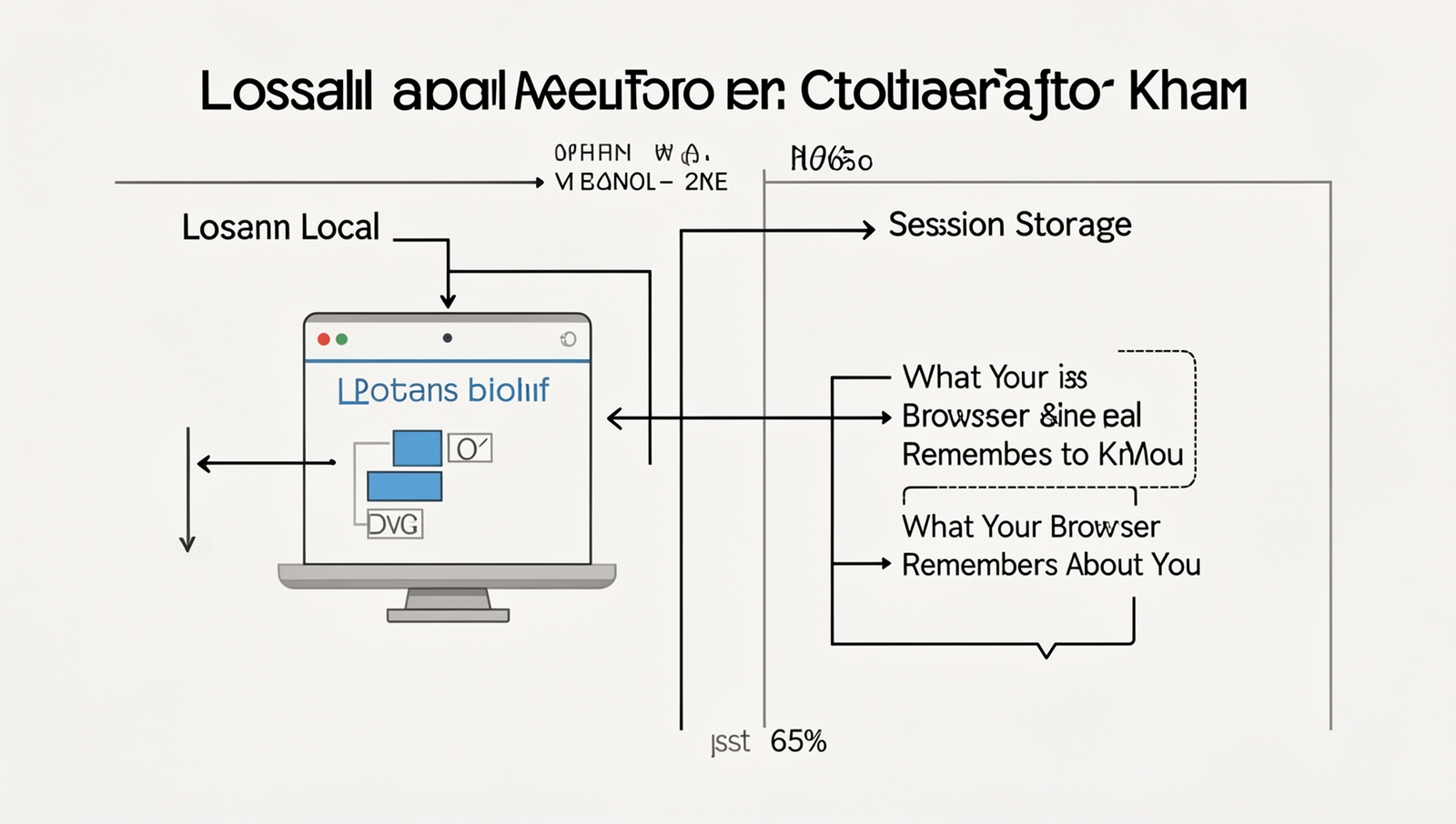
When it comes to understanding what your browser remembers about you, local storage and session storage are two key components that play a significant role. Both are part of the Web Storage API, which allows web applications to store data in a user’s browser. However, they serve different purposes and have distinct characteristics.
Local Storage is designed for long-term data storage. It allows websites to store data persistently, meaning that the data remains even after the browser is closed and reopened. This is particularly useful for applications that require user preferences, such as themes, language settings, or shopping cart contents. For example, if you visit an online store and add items to your cart, local storage can remember those items for your next visit, enhancing your shopping experience.
Session Storage, on the other hand, is intended for temporary data storage. It only lasts for the duration of the page session, which means that data is lost once the tab or browser is closed. This is ideal for scenarios where you need to store data that is relevant only during a single visit, such as form inputs or user authentication tokens. For instance, if you fill out a form and navigate away from the page, session storage can help retain your input until you submit it.
- Lifespan: Local storage persists until explicitly deleted, while session storage is cleared when the session ends.
- Accessibility: Local storage is accessible across different tabs and windows, whereas session storage is limited to the tab in which it was created.
Developers leverage these storage types to enhance user experience by providing personalized and seamless interactions. By utilizing local storage, they can create applications that remember user settings and preferences, while session storage can help manage temporary data efficiently. Understanding what your browser remembers through these storage mechanisms can empower users to manage their online presence more effectively.
Managing Your Browser’s Memory of You
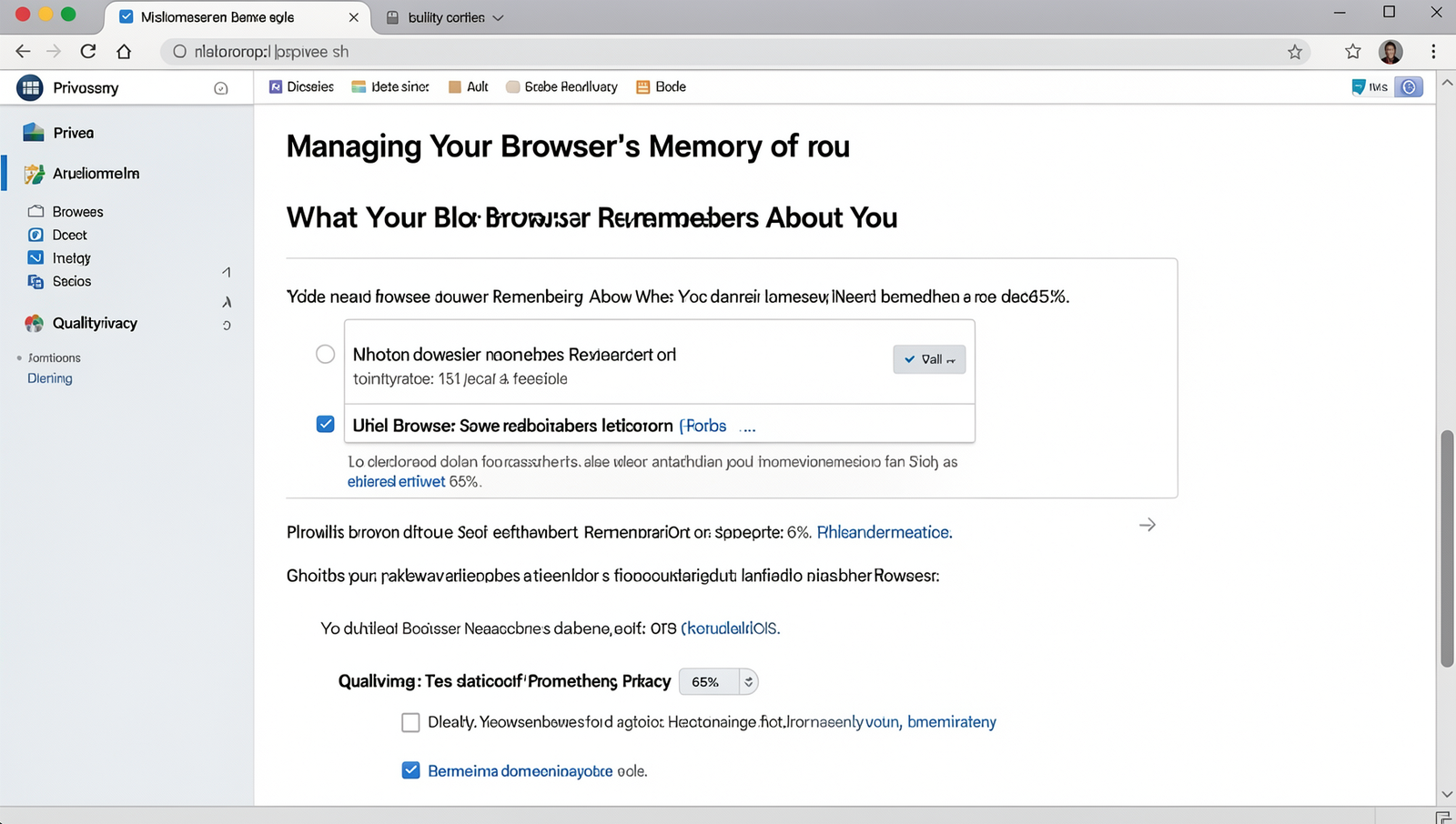
Your web browser plays a significant role in how you interact with the internet, but it also retains a considerable amount of information about your online activities. This includes cookies, cached files, and other storage data. Understanding how to manage what your browser remembers is essential for maintaining your privacy. Here are some practical steps you can take.
To view and delete cookies and storage data, you can follow these general steps for most popular browsers:
- Google Chrome: Go to Settings > Privacy and security > Cookies and other site data. Here, you can view and delete specific cookies or clear all data.
- Mozilla Firefox: Navigate to Options > Privacy & Security > Cookies and Site Data. You can manage data from individual sites or clear all data.
- Microsoft Edge: Access Settings > Privacy, search, and services > Clear browsing data. You can select what to clear, including cookies and cached files.
In addition to manually managing cookies, you can adjust your browser settings for enhanced privacy and tracking prevention. Most browsers offer features that allow you to block third-party cookies or enable “Do Not Track” requests. For example:
- In Chrome, go to Settings > Privacy and security > Cookies and other site data, and select “Block third-party cookies.”
- In Firefox, navigate to Options > Privacy & Security and choose “Strict” under Enhanced Tracking Protection.
There are also tools and extensions available that can help you manage your browser memory more effectively. Extensions like Privacy Badger and uBlock Origin can block trackers and unwanted cookies, enhancing your online privacy.
Finally, adopting best practices for maintaining online privacy is crucial. Regularly clearing your cookies and cache, using incognito or private browsing modes, and being cautious about the information you share online can significantly reduce what your browser remembers about you.
Conclusion
Understanding what your browser remembers about you is crucial in today’s digital landscape. Browsers store a variety of data, including your browsing history, cookies, and cached files, all of which can impact your online experience. By being aware of this information, you can take proactive steps to manage your privacy and enhance your browsing security. Regularly clearing your cache and cookies can help minimize the amount of personal data stored, while using private browsing modes can provide an additional layer of anonymity.
As you navigate the internet, consider the benefits of managing what your browser remembers. Not only does it protect your privacy, but it can also improve your device’s performance by freeing up storage space. Moving forward, take the time to review your browser settings and understand the implications of the data collected. By doing so, you empower yourself to make informed decisions about your online presence and safeguard your personal information.
Frequently Asked Questions
What data does my browser store about me?
Your browser stores various types of data, including browsing history, cookies, cached files, and form data. This information helps improve your browsing experience by remembering your preferences and login details, but it can also raise privacy concerns.

How can I view what my browser remembers?
You can view the data stored by your browser by accessing the settings or