8 min read • 1,624 words
Table of Contents
ToggleThe Hidden Life of Your Deleted Files
Have you ever wondered what happens to your files after you hit the delete button? In “The Hidden Life of Your Deleted Files,” we delve into the intriguing world of data deletion and recovery. Many users believe that once a file is deleted, it is gone for good. However, this is often far from the truth. When a file is deleted, the operating system typically removes the reference to it, leaving the actual data intact until it is overwritten. This article will explore the various methods of file recovery, the implications of data deletion, and why understanding this process is crucial for your digital security.
Additionally, we will discuss the differences in file deletion across different storage mediums, such as traditional hard drives and solid-state drives (SSDs). With SSDs employing a method called TRIM, the recovery of deleted files becomes more complex. We will also cover the role of cloud storage services in retaining deleted files and the importance of using file shredding software for permanent deletion. By the end of this article, you will have a comprehensive understanding of the hidden life of your deleted files and the best practices for managing your digital footprint.
Understanding Deleted Files
When we talk about deleted files, we often think of them as gone forever. However, this is a common misconception. In reality, when a file is deleted, it is not immediately removed from the storage device. Instead, the operating system marks the space occupied by the file as available for new data, while the actual data remains intact until it is overwritten. This phenomenon is what gives rise to the concept of “The Hidden Life of Your Deleted Files.”
Different operating systems handle file deletion in various ways. For instance, in Windows, when you delete a file, it typically goes to the Recycle Bin, allowing for easy recovery. If you empty the Recycle Bin, the file is marked as deleted, but the data is still present on the hard drive until overwritten. In contrast, macOS uses a similar approach with its Trash feature. Linux systems, however, often employ a more direct method of deletion, depending on the file manager being used.
There are two primary types of deletion: soft delete and hard delete. A soft delete refers to the process where a file is moved to a temporary storage location, such as the Recycle Bin or Trash. This allows users to recover the file easily. A hard delete, on the other hand, removes the file from these temporary locations and marks the space as available, but the data can still be recovered using specialized software until it is overwritten.
The role of file systems in data management is crucial. File systems, such as NTFS for Windows or APFS for macOS, dictate how data is stored, organized, and retrieved. They manage the allocation of space on the disk and keep track of which files are in use and which are deleted. Understanding these systems can help users better manage their data and recover deleted files when necessary.
The Lifecycle of Deleted Files
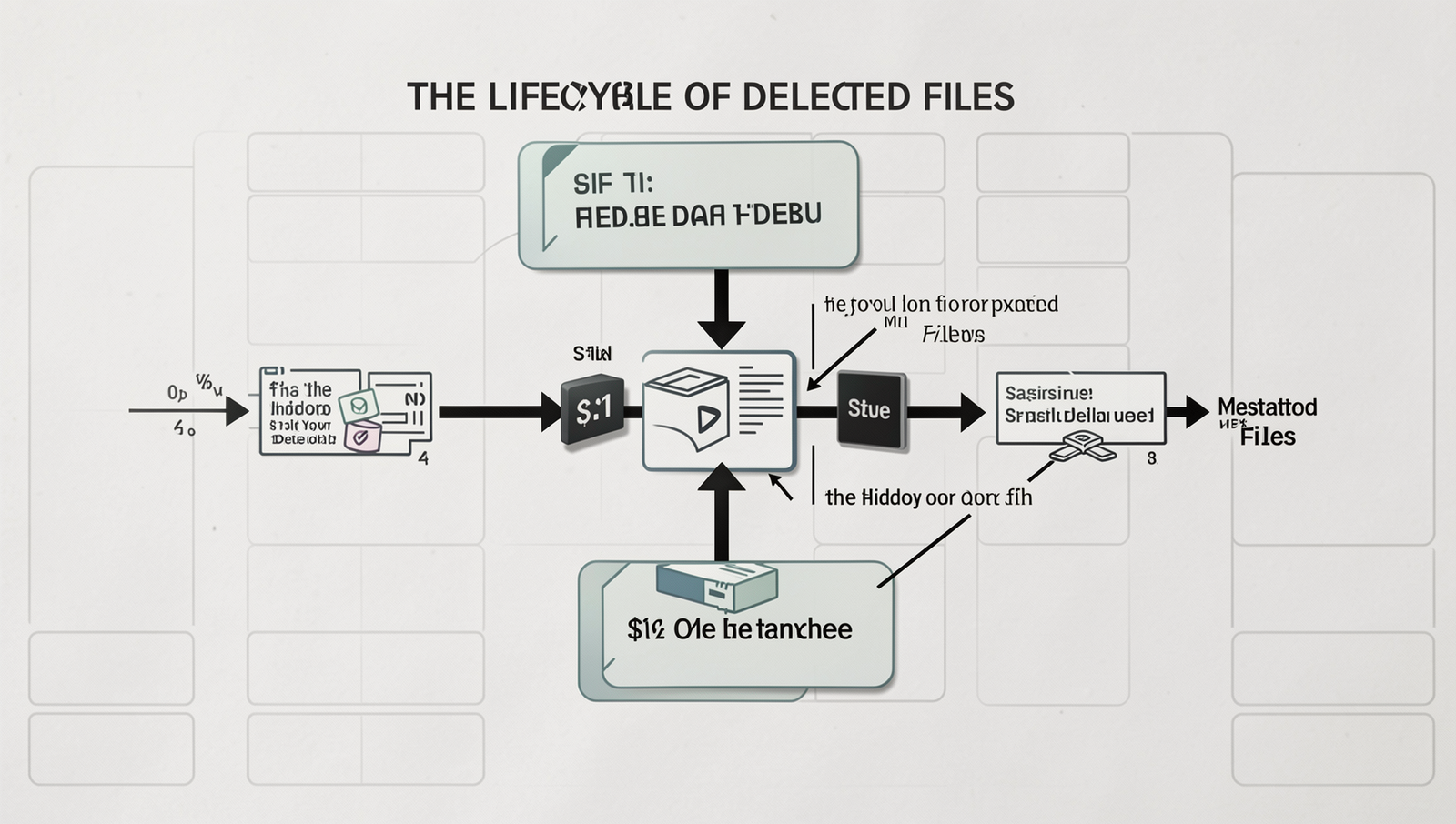
When you delete a file from your computer, you might think it’s gone for good. However, the reality is quite different. The Hidden Life of Your Deleted Files reveals a complex lifecycle that begins the moment you hit the delete button. Understanding this lifecycle can help you manage your data more effectively and protect your privacy.
Initially, when a file is deleted, it typically moves to a temporary storage area known as the Recycle Bin (on Windows) or Trash (on macOS). This allows users to recover files easily if they change their minds. Until the Recycle Bin is emptied, the files remain intact and can be restored with just a few clicks. For example, in Windows, you can restore a file by right-clicking on it in the Recycle Bin and selecting “Restore.”
Once the Recycle Bin is emptied, the file is not immediately erased from the hard drive. Instead, the operating system marks the space occupied by the deleted file as available for new data. This means that the actual data remains on the disk until it is overwritten by new files. Data overwriting can have significant implications for data recovery. If a file is overwritten, it becomes much more challenging, if not impossible, to retrieve.
- Data Recovery: There are various methods to recover deleted files, including using specialized software that scans the hard drive for remnants of deleted data.
- Physical Recovery: In extreme cases, data recovery services can physically recover data from damaged drives.
- Prevention: Regularly backing up important files can prevent data loss and reduce reliance on recovery methods.
In conclusion, the lifecycle of deleted files is a fascinating interplay of temporary storage, potential recovery, and the risks of data overwriting. By understanding these concepts, users can make informed decisions about their data management practices.
Tools and Techniques for Recovery
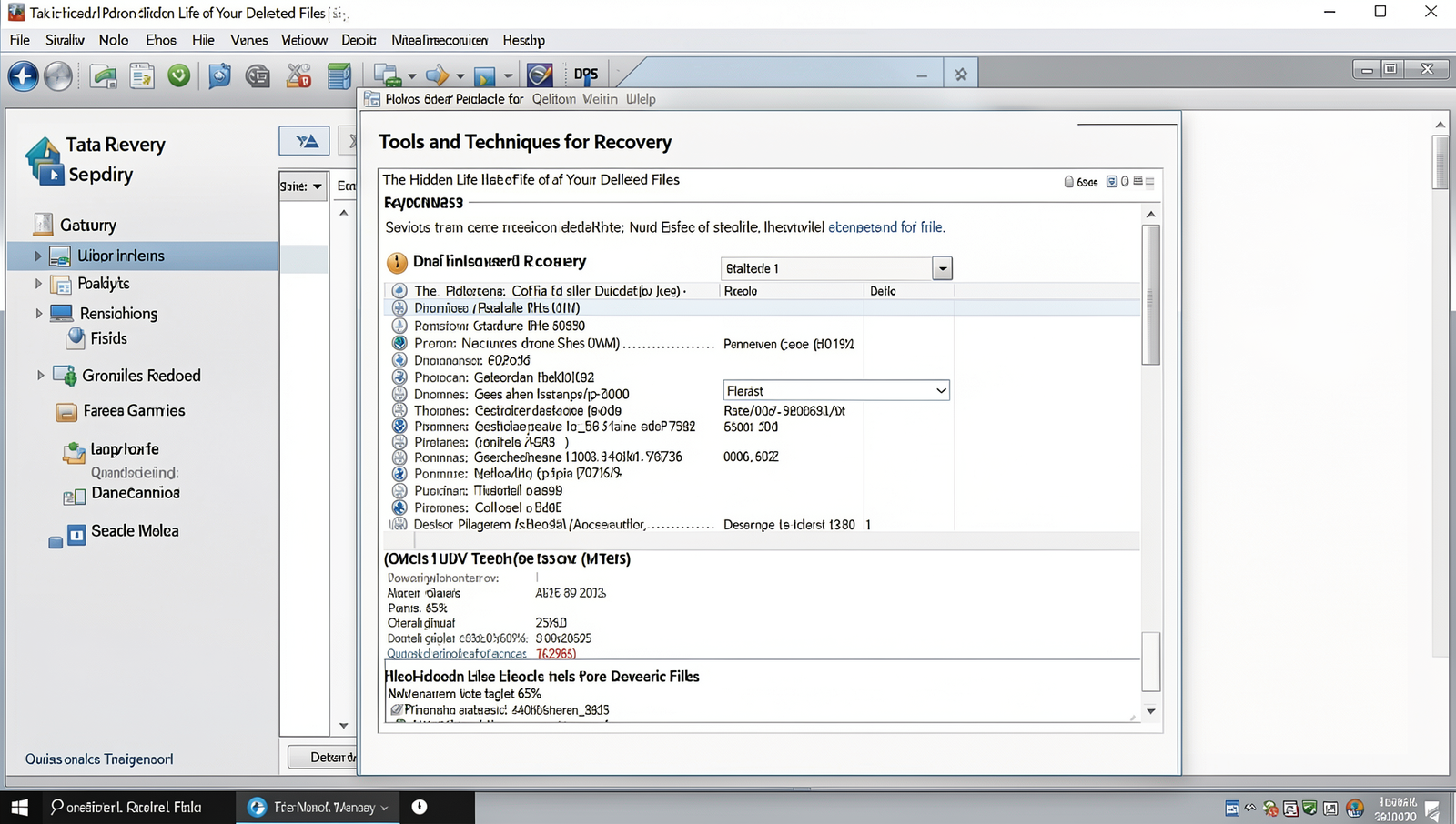
When it comes to recovering deleted files, a variety of tools and techniques are available to assist users in retrieving their lost data. Understanding these options can make a significant difference in the success of your recovery efforts. Popular data recovery software includes programs like Recuva, EaseUS Data Recovery Wizard, and Stellar Data Recovery. Each of these tools offers unique features, catering to different user needs.
- Recuva: A user-friendly tool that is great for beginners and offers a free version for basic recovery tasks.
- EaseUS Data Recovery Wizard: Known for its powerful scanning capabilities, it can recover files from various storage devices.
- Stellar Data Recovery: This software provides advanced recovery options and is suitable for more complex data loss scenarios.
Choosing the right recovery tool depends on several factors, including the type of data loss, the storage device, and your technical proficiency. For instance, if you are dealing with a simple accidental deletion, a basic tool like Recuva may suffice. However, if you are facing a more severe issue, such as a corrupted hard drive, a more robust solution like Stellar may be necessary.
To recover deleted files using a data recovery tool, follow this step-by-step guide:
1. Download and install the chosen recovery software.
2. Launch the program and select the drive from which you want to recover files.
3. Initiate a scan to search for deleted files.
4. Review the list of recoverable files once the scan is complete.
5. Select the files you wish to recover and choose a safe location to save them.
Despite the effectiveness of these recovery tools, there are limitations and risks involved. Recovery success can vary based on how much time has passed since deletion and whether new data has been written to the storage device. Additionally, using recovery software improperly may lead to further data loss, making it crucial to follow instructions carefully.
Preventing Unwanted Data Loss
In the digital age, managing files effectively is crucial to prevent unwanted data loss. The Hidden Life of Your Deleted Files reveals that even after deletion, files may still linger on your device. To mitigate this risk, adopting best practices for file management and organization is essential. Here are some strategies to consider:
- Organize Files Regularly: Create a structured folder system that categorizes files by type, project, or date. This makes it easier to locate and manage your data.
- Use Descriptive Names: Instead of generic file names, use descriptive titles that indicate the content. This will help you identify files quickly.
- Implement Version Control: For important documents, maintain multiple versions to track changes and revert if necessary.
Regular backups and cloud storage are vital components of a robust data management strategy. Backing up your files ensures that you have copies available in case of accidental deletion or hardware failure. Consider the following:
- Schedule Automatic Backups: Use software that automatically backs up your files at regular intervals.
- Utilize Cloud Storage: Services like Google Drive or Dropbox provide secure access to your files from anywhere and protect against local data loss.
Understanding encryption and secure deletion methods is also important. Encryption protects your files from unauthorized access, while secure deletion ensures that deleted files cannot be recovered. To securely dispose of sensitive files, use the following methods:
- Use Secure Deletion Tools: Applications like
BleachBitorErasercan permanently delete files beyond recovery. - Overwrite Data: When deleting files, overwrite them with random data to prevent recovery.
By implementing these practices, you can significantly reduce the risk of data loss and protect your sensitive information from prying eyes.
Conclusion
In exploring “The Hidden Life of Your Deleted Files,” we uncover the crucial understanding that deletion does not equate to permanent removal. Many users operate under the misconception that once files are deleted, they are irretrievable. However, the reality is that data often remains on storage devices, accessible through various recovery methods. This knowledge highlights the importance of data management and the need for secure deletion practices to protect sensitive information.
By implementing tools designed for secure file deletion and regularly reviewing data storage practices, individuals and organizations can significantly reduce the risk of data breaches. As we move forward, it is essential to remain vigilant about how we handle our digital information. Embracing the lessons learned from “The Hidden Life of Your Deleted Files” empowers users to take proactive steps in safeguarding their data, ensuring that what is meant to be gone truly is gone.
Frequently Asked Questions
What happens to files after I delete them?
When you delete a file, it is typically moved to a recycle bin or trash folder. However, the data remains on your hard drive until it is overwritten by new data. The file