8 min read • 1,627 words
The Hidden Files Behind Windows Updates
When it comes to maintaining a healthy Windows operating system, understanding the hidden files associated with Windows updates is essential. These hidden files, often overlooked, play a critical role in system recovery and performance. For instance, many update files are stored in a concealed folder known as ‘SoftwareDistribution’, which not only caches files for quicker installations but can also consume significant disk space over time. This article will delve into the intricacies of these hidden files and explain why they matter to every Windows user.
Moreover, certain updates may include telemetry data that is not disclosed in the update notes, raising concerns about privacy and data management. Additionally, the ‘WinSxS’ folder, which contains multiple versions of system files for updates, is frequently misunderstood. By exploring these hidden files related to Windows updates, readers will gain valuable insights into optimizing their systems and ensuring efficient updates.
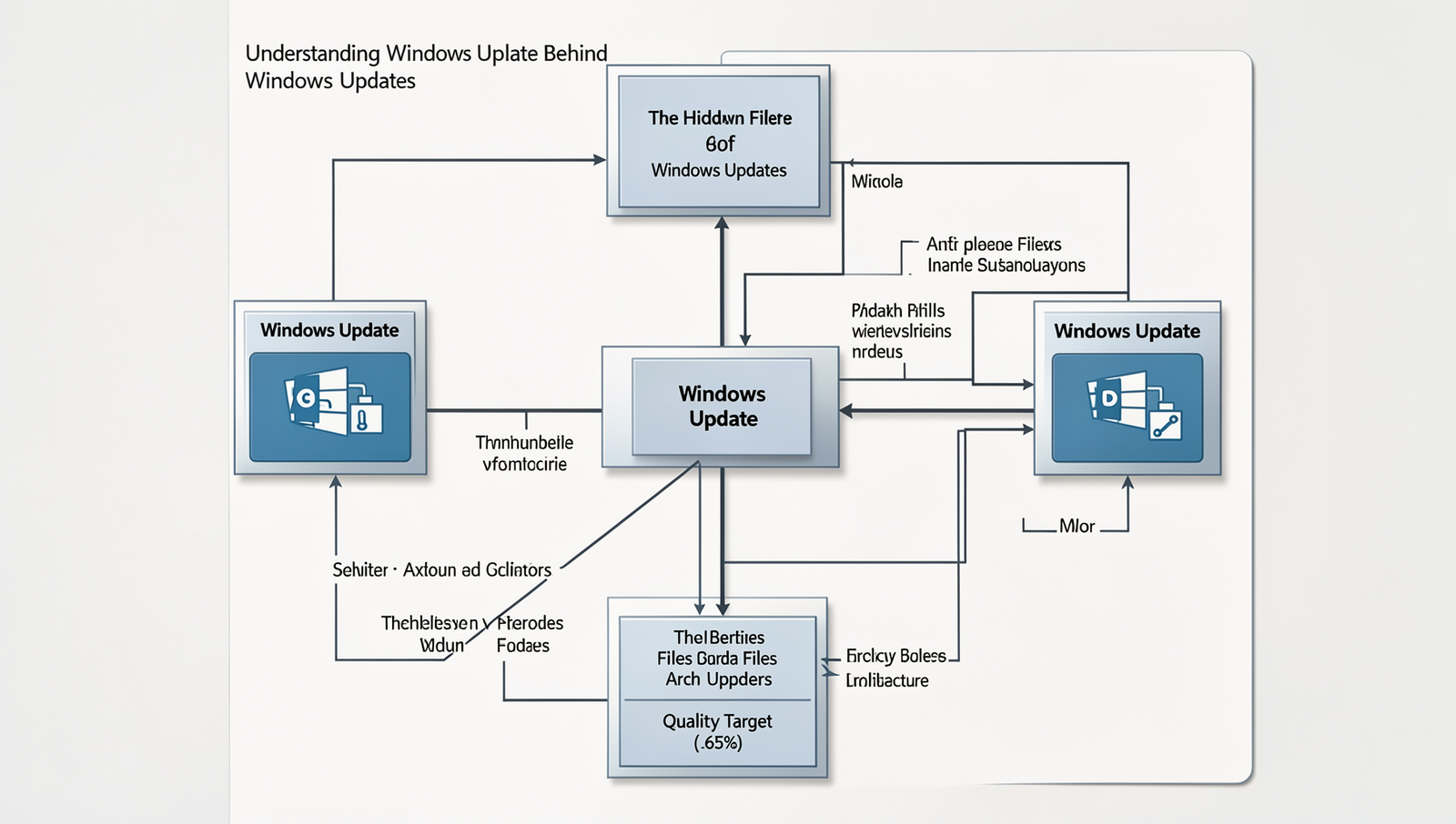
Understanding Windows Update Architecture
Windows Update is a critical component of the Windows operating system, ensuring that users receive the latest security patches, feature updates, and driver enhancements. The architecture of Windows Update consists of several key components that work together to deliver updates efficiently and securely.
At the heart of this architecture is the Windows Update Agent (WUA). The WUA is responsible for detecting, downloading, and installing updates on a Windows device. It communicates with the Windows Update servers to check for available updates and manages the installation process. The WUA operates in the background, allowing users to continue their tasks without interruption.
Another essential component is Windows Server Update Services (WSUS). WSUS is a server role that enables IT administrators to manage the distribution of updates released through Microsoft Update to computers in a corporate environment. By using WSUS, organizations can control which updates are deployed, ensuring that only necessary updates are installed on client machines. This helps to minimize bandwidth usage and enhances security by allowing administrators to test updates before widespread deployment.
The interaction between the client and server during updates is a crucial aspect of the Windows Update process. When a client device connects to the update server, it sends a request for available updates. The server responds with a list of updates that the client is eligible to receive. This process involves several steps:
- Client sends a request to the server.
- Server checks the client’s update history and current version.
- Server sends back a list of applicable updates.
- Client downloads and installs the updates.
Understanding these components and their interactions is vital for troubleshooting issues related to hidden files in Windows updates. By knowing how the update process works, users can better manage their systems and ensure they remain secure and up-to-date.
Types of Windows Updates
Windows updates are essential for maintaining the performance, security, and functionality of your operating system. They are categorized into several types, each serving a distinct purpose. Understanding these categories can help users make informed decisions about when and how to update their systems.
- Feature Updates: These updates introduce new features and enhancements to the operating system. They are typically released twice a year and may include significant changes to the user interface, new applications, or improved functionality. For example, the introduction of the Windows 11 interface was a feature update that brought a fresh look and new capabilities.
- Quality Updates: Also known as cumulative updates, these are released monthly and focus on fixing bugs and improving the performance of the operating system. They include improvements to existing features and address issues that may have been reported by users. For instance, a quality update might resolve compatibility issues with third-party software.
- Security Updates: These updates are critical for protecting the system against vulnerabilities and threats. They are released as needed and often address specific security flaws that could be exploited by malware or hackers. For example, a security update might patch a vulnerability in the Windows kernel that could allow unauthorized access.
Updates are prioritized based on their importance and urgency. Security updates are generally prioritized highest, followed by quality updates, and then feature updates. Optional updates, on the other hand, are not mandatory and may include additional features or driver updates. Users should consider the implications of installing optional updates, as they may introduce new changes that could affect system stability.
The lifecycle of an update begins with its development and testing phase, followed by a public release. After release, updates are rolled out in stages to ensure stability. Users can monitor the status of updates through the Windows Update settings, where they can also manage their preferences for automatic installations.
Troubleshooting Windows Update Issues
Windows updates are essential for maintaining the security and performance of your system. However, users often encounter various problems during the update process. Understanding these issues and knowing how to troubleshoot them can save time and frustration.
Some common problems encountered during updates include:
- Updates failing to install
- Stuck updates that do not progress
- Error codes that indicate specific issues
- Slow system performance post-update
To diagnose these update issues, several tools and commands can be utilized. The Windows Update Troubleshooter is a built-in tool that can automatically detect and fix common problems. Additionally, using the Event Viewer can provide insights into errors related to updates. You can access it by typing
eventvwrin the Run dialog.
Another useful command is DISM, which can repair the Windows image. To run this command, open Command Prompt as an administrator and type:
Dism /Online /Cleanup-Image /RestoreHealthIf you need to manually reset Windows Update components, follow these steps:
- Open Command Prompt as an administrator.
- Stop the Windows Update service by executing:
net stop wuauserv - Stop the Background Intelligent Transfer Service with:
net stop bits - Delete the SoftwareDistribution folder by running:
rd /s /q %windir%\SoftwareDistribution - Restart the services with:
net start wuauservand
net start bits
To maintain a healthy update environment, consider these best practices:
- Regularly check for updates manually.
- Ensure that your system has sufficient disk space.
- Keep your drivers updated.
- Backup your system before major updates.
By following these troubleshooting steps and best practices, you can effectively manage the hidden files behind Windows updates and ensure a smoother update experience.
Conclusion
In summary, understanding the hidden files behind Windows updates is crucial for users who want to maintain optimal system performance and security. These files, often overlooked, play a significant role in the update process, ensuring that your operating system runs smoothly and efficiently. By recognizing the importance of these hidden files, users can take proactive steps to manage their storage and improve their overall computing experience. Regularly checking for unnecessary files can free up valuable disk space and enhance system responsiveness.
Moving forward, users should consider utilizing tools designed to analyze and manage hidden files related to Windows updates. This can help streamline the update process and prevent potential issues caused by outdated or corrupted files. By staying informed and taking action, you can ensure that your Windows system remains secure and up-to-date, ultimately leading to a more reliable and efficient computing environment. Embracing this knowledge empowers users to take control of their systems and optimize their performance.
Real-World Examples
Understanding the implications of hidden files in Windows updates can be crucial for both individual users and IT professionals. These hidden files can impact system performance, storage management, and even security. Here are some real-world scenarios that illustrate the significance of these hidden files.
For instance, a small business owner noticed that their computer was running slower than usual. After investigating, they discovered that a significant amount of disk space was being consumed by hidden files created during Windows updates. These files included temporary installation files and rollback files that were no longer necessary. By using disk cleanup tools, they were able to remove these hidden files, freeing up space and improving system performance.
Another example involves an IT administrator managing multiple systems in an organization. After a major Windows update, the administrator found that several machines were experiencing issues due to corrupted hidden files. These files, which were meant to facilitate the update process, ended up causing system instability. The administrator had to manually delete the problematic hidden files and reapply the updates to restore functionality. This incident highlighted the importance of monitoring hidden files during updates to prevent potential disruptions.
In a different scenario, a tech-savvy user decided to delve deeper into the hidden files generated by Windows updates. They used tools like Disk Cleanup and Storage Sense to identify and manage these files effectively. By regularly cleaning up hidden files, they not only maintained optimal system performance but also enhanced security by reducing the attack surface associated with outdated or unnecessary files.
These examples underscore the importance of being aware of hidden files created during Windows updates. Whether you’re a casual user or an IT professional, understanding how to manage these files can lead to a more efficient and secure computing experience.
Frequently Asked Questions
What are hidden files in Windows updates?
Hidden files in Windows updates are system files that are not visible by default. They contain essential data related to the update process, including installation logs, temporary files, and configuration settings. These files help ensure that updates are applied correctly and efficiently.

How can I view hidden files related to Windows updates?
To view hidden files related to Windows updates, you can adjust your folder settings in File Explorer. Go to the “View” tab, select “Options,” then “Change folder and search options.” Under the “View” tab, choose “Show hidden files, folders, and drives” and apply the changes.
Why are some Windows update files hidden?
Some Windows