8 min read • 1,639 words
The Mystery Behind Dead USB Ports
Have you ever experienced the frustration of a dead USB port? The Mystery Behind Dead USB Ports is a common issue that many users face, often leading to confusion and inconvenience. Understanding the underlying causes of this problem is crucial for anyone who relies on USB connections for their devices. In this article, we will explore the various factors that can lead to USB ports becoming non-functional, from hardware failures to software issues.
Readers will learn about the potential hardware failures, such as damaged connectors or faulty motherboards, that can cause USB ports to stop working. Additionally, we will discuss how outdated drivers or operating system bugs can contribute to the problem. Power supply issues, overheating, and even physical obstructions like dust can also play a significant role in rendering USB ports ineffective. By the end of this article, you will have a clearer understanding of the mystery behind dead USB ports and how to troubleshoot them effectively.
Understanding USB Ports
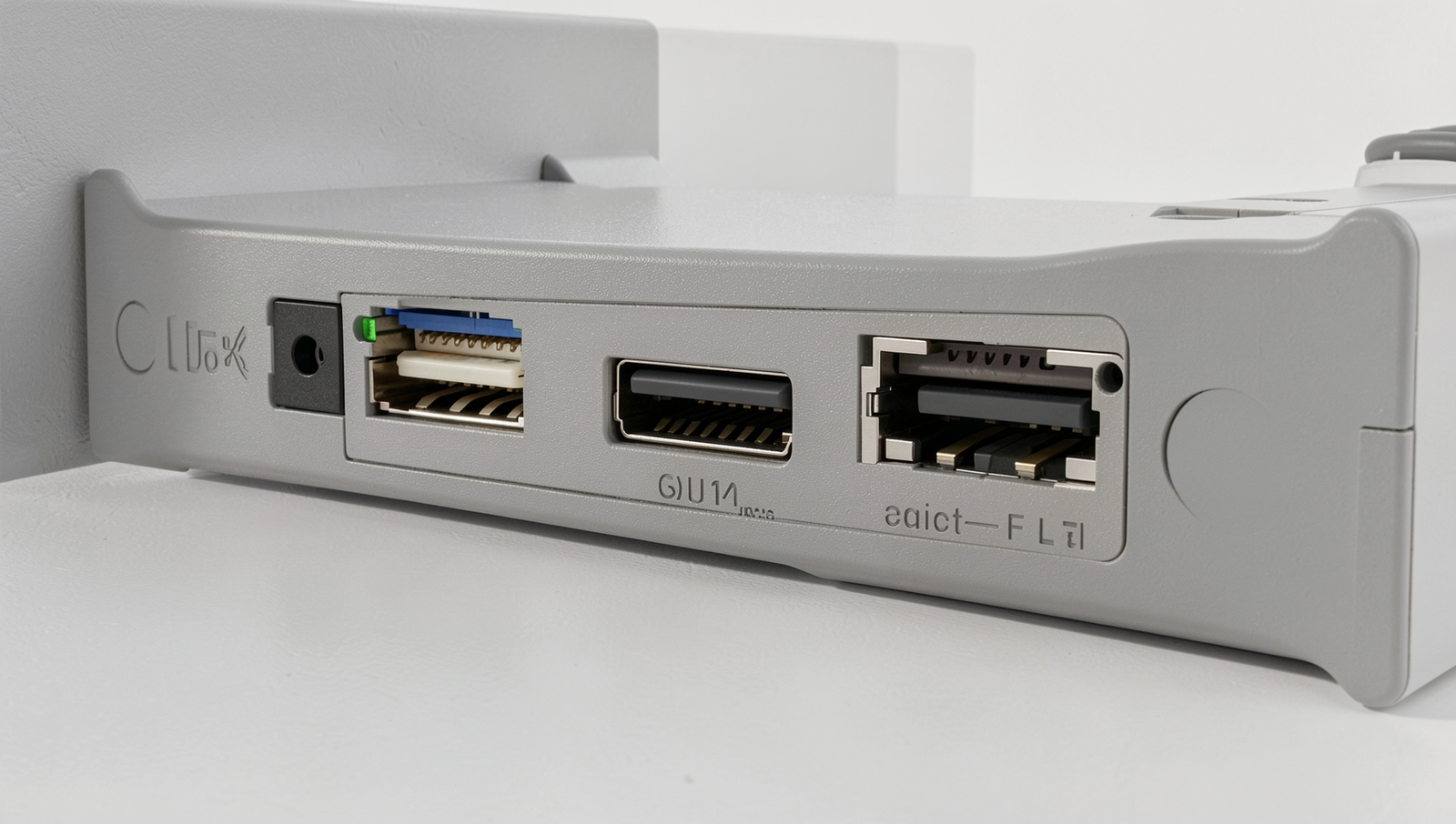
USB ports, or Universal Serial Bus ports, are standardized interfaces that allow for the connection of various devices to computers and other electronic equipment. Their primary purpose is to facilitate data transfer and power supply between devices, making them essential in today’s technology-driven world. From smartphones to printers, USB ports serve as a universal connection point for a wide range of peripherals.
There are several types of USB ports, each designed for specific functions and devices. The most common types include:
- USB-A: The standard rectangular connector found on most computers and chargers.
- USB-B: Typically used for larger devices like printers and scanners, featuring a square shape.
- USB-C: A newer, reversible connector that supports faster data transfer and power delivery, increasingly used in modern devices.
USB ports are commonly used in various applications. For example, they connect keyboards and mice to computers, allow for the charging of smartphones, and enable the transfer of files between devices. Additionally, USB ports can be found in gaming consoles, televisions, and even vehicles, showcasing their versatility and importance in everyday technology.
The evolution of USB standards has significantly enhanced the functionality of these ports. Starting with USB 1.0, which offered a data transfer rate of 1.5 Mbps, the technology has progressed to USB 3.2, capable of speeds up to 20 Gbps. This evolution not only improves data transfer rates but also increases power delivery capabilities, allowing devices to charge faster and more efficiently.
Understanding the various types and standards of USB ports is crucial, especially when troubleshooting issues like dead USB ports. By recognizing the differences and advancements in USB technology, users can better navigate their devices and ensure optimal performance.
Common Causes of Dead USB Ports
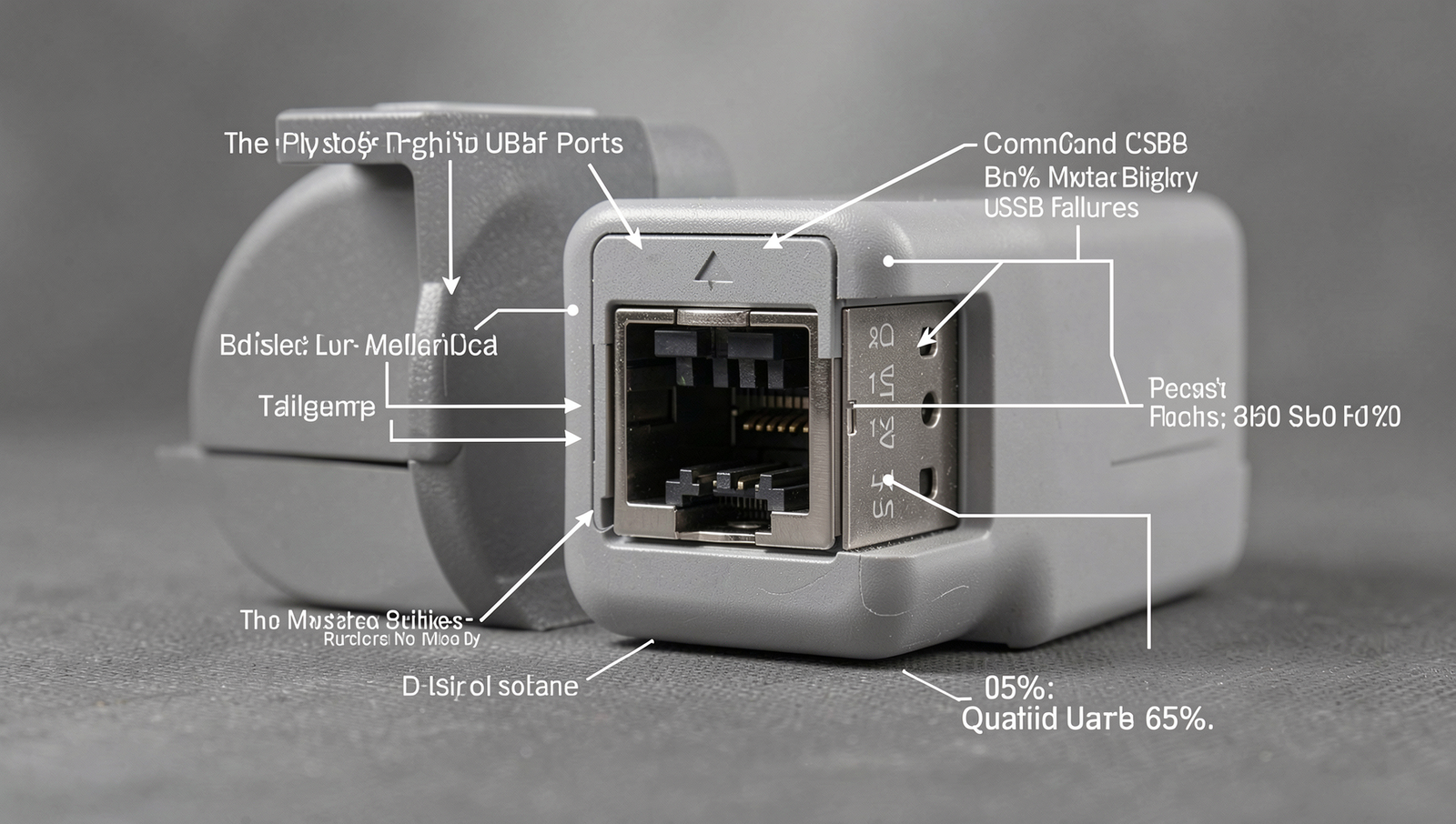
Understanding the reasons behind dead USB ports can help users troubleshoot and resolve issues effectively. Several factors can contribute to this frustrating problem, and identifying them is the first step towards a solution.
- Physical Damage to the Port or Connector: One of the most common reasons for a non-functional USB port is physical damage. This can occur due to frequent plugging and unplugging of devices, or if the device is dropped. A bent or broken connector can prevent proper contact, rendering the port useless. For example, if you notice that a USB device fits loosely in the port, it may indicate wear and tear.
- Driver Issues and Software Conflicts: Sometimes, the problem lies within the software. Outdated or corrupted drivers can lead to USB ports not recognizing connected devices. Users can check for driver updates by navigating to the Device Manager in Windows and looking for any alerts next to USB controllers. Running the command
devmgmt.msccan quickly take you there.
- Power Supply Problems Affecting USB Functionality: USB ports require adequate power to function correctly. If the power supply to the computer is unstable or insufficient, it can lead to dead ports. This is particularly common in laptops that are running on low battery. Users can check their power settings and ensure that their device is plugged in and charging.
- Overheating and Electrical Shorts: Overheating can cause USB ports to fail temporarily or permanently. This can happen if devices draw too much power or if there is an internal short circuit. Keeping devices cool and ensuring proper ventilation can help prevent these issues.
By understanding these common causes, users can better diagnose and address the issues related to dead USB ports, ultimately leading to a more efficient computing experience.
Diagnosing Dead USB Ports
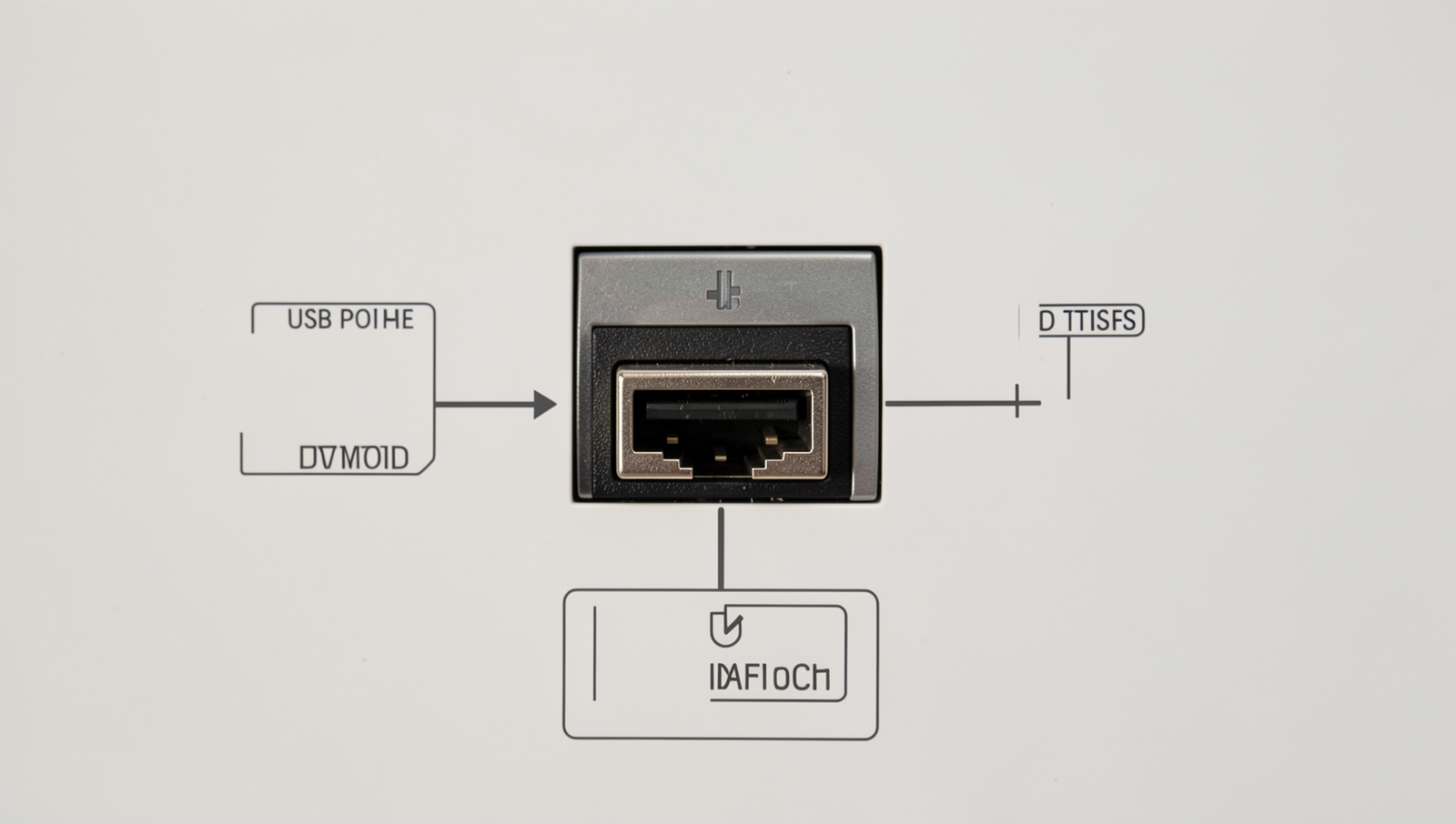
When faced with the issue of dead USB ports, the first step is to conduct a thorough diagnosis to identify the root cause. There are several practical approaches to troubleshoot and potentially resolve the problem.
One of the initial steps is to check for physical damage and debris. Inspect the USB ports closely for any signs of wear, bent pins, or foreign objects lodged inside. A can of compressed air can be useful for blowing out dust and debris that may be obstructing the connection. If you notice any physical damage, it may require professional repair or replacement.
Next, testing with different devices and cables can help determine if the issue lies with the USB port itself or the device being connected. Try using various USB devices, such as flash drives, keyboards, or mice, and different cables to see if any of them work. If some devices function while others do not, the problem may be with the specific device rather than the port.
Utilizing the device manager is another effective method for troubleshooting drivers. To access the device manager, you can use the following command:
devmgmt.mscIn the device manager, look for any warning signs next to USB controllers. If you find any, right-click and select “Update driver” to ensure that the drivers are current. If updating does not resolve the issue, you may also try uninstalling the device and restarting your computer, allowing it to reinstall the drivers automatically.
Finally, running hardware diagnostics tools can provide deeper insights into the functionality of your USB ports. Many computers come with built-in diagnostics that can be accessed during startup. Alternatively, third-party diagnostic tools can be downloaded to assess the hardware’s performance.
By following these steps, you can systematically diagnose the mystery behind dead USB ports and potentially restore their functionality.
Solutions and Preventive Measures
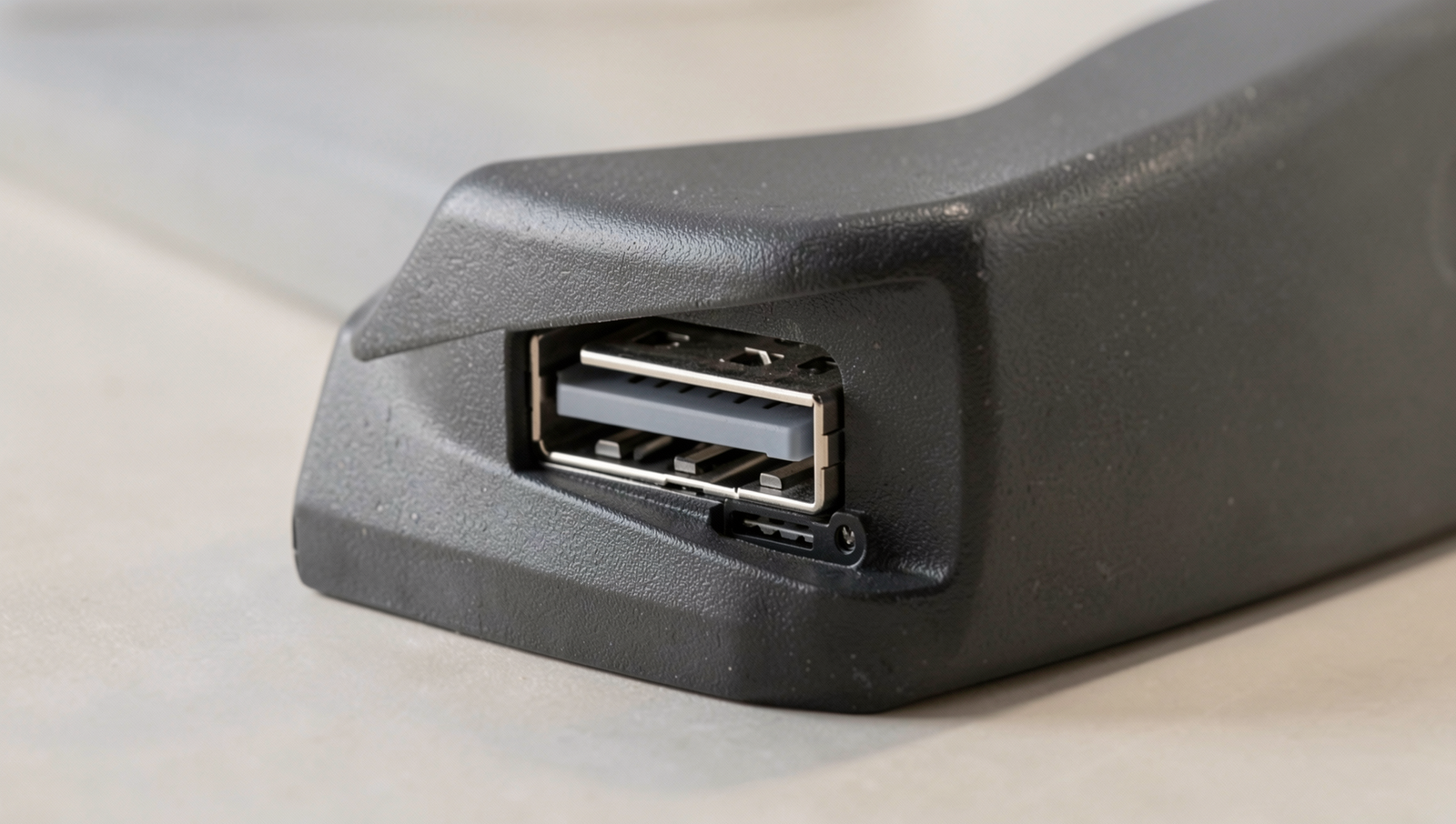
To address the issue of dead USB ports, it is essential to adopt a proactive approach. Regular maintenance and timely updates can significantly extend the lifespan of your USB ports and prevent future failures. Here are some effective solutions and preventive measures to consider:
- Cleaning and Maintaining USB Ports Regularly: Dust and debris can accumulate in USB ports, leading to poor connectivity. Use a can of compressed air to gently blow out any dust. Additionally, you can use a soft brush or a cotton swab dipped in isopropyl alcohol to clean the port’s interior. This simple maintenance task can enhance connectivity and prevent malfunction.
- Updating Drivers and Firmware: Outdated drivers can lead to compatibility issues, resulting in non-functional USB ports. Regularly check for updates for your operating system and USB drivers. You can do this by navigating to the device manager and selecting the USB controllers section. Right-click on each entry and choose
Update Driver. Keeping your firmware up to date is also crucial, as manufacturers often release patches that fix bugs and improve performance. - Using Surge Protectors: Electrical surges can damage USB ports and connected devices. To safeguard your equipment, invest in a quality surge protector. This device can absorb excess voltage and prevent it from reaching your USB ports, thus minimizing the risk of electrical damage.
- Replacing Faulty Hardware Components: If you have tried all the above measures and your USB ports remain unresponsive, it may be time to consider hardware replacement. This could involve replacing the USB port itself or other related components on the motherboard. Consult with a professional technician to assess the situation accurately.
By implementing these solutions and preventive measures, you can mitigate the risks associated with dead USB ports and ensure a more reliable computing experience.
Conclusion
In summary, understanding “The Mystery Behind Dead USB Ports” is essential for anyone who relies on these connections for their devices. Common causes of malfunctioning USB ports include physical damage, driver issues, and power supply problems. By recognizing these potential issues, users can take proactive steps to troubleshoot and resolve the problems effectively. Regular maintenance, such as cleaning ports and updating drivers, can significantly extend the lifespan of USB connections.
Moving forward, it is beneficial to stay informed about the latest technology trends and USB standards, as advancements may offer solutions to common problems. If issues persist, seeking professional help or considering hardware replacements may be necessary. Ultimately, addressing the mystery behind dead USB ports not only enhances device functionality but also improves overall user experience, ensuring that technology remains a reliable part of our daily lives.
Frequently Asked Questions
What causes USB ports to stop working?
USB ports can stop working due to various reasons, including physical damage, dust accumulation, or internal hardware failures. Additionally, software issues such as outdated drivers or operating system conflicts can also lead to malfunctioning USB ports.
How can I troubleshoot a dead USB port?
To troubleshoot a dead USB port, start by checking the device on another port or computer. Ensure the drivers are updated, and try rebooting your system. Cleaning the port and checking for physical damage can also help identify the problem.
Are dead USB ports repairable?
Yes, dead USB ports can often be repaired, depending on the cause of the issue. Simple problems like dirt or loose connections can