8 min read • 1,643 words
Table of Contents
ToggleWhat Happens Inside a Restarting PC?
Have you ever wondered what actually happens inside your PC when you hit the restart button? Understanding the intricacies of this process can enhance your appreciation for the technology you use daily. The journey of a restarting PC is a fascinating sequence of events that ensures your system is ready for use. In this article, we will explore the essential steps involved in a PC restart, shedding light on the critical functions that occur behind the scenes.
When a PC restarts, it first undergoes a Power-On Self-Test (POST) to check the functionality of hardware components. Following this, the BIOS or UEFI firmware takes charge, initializing the system hardware and loading the bootloader. The operating system kernel is then loaded into memory, which assumes control of the system. Finally, drivers for various hardware components are loaded, enabling seamless communication between the operating system and the hardware. This comprehensive process ensures that user settings and applications are restored, allowing you to pick up right where you left off.

The Boot Process
When a PC is restarted, a series of intricate processes occur to prepare the system for operation. Understanding what happens inside a restarting PC can demystify the technology we often take for granted. The boot process is the first step in this journey, involving several critical stages that ensure the hardware and software are ready to work together.
The first phase of the boot process involves the initialization of hardware components. When the power is turned on, the motherboard receives power and begins to activate various hardware components such as the CPU, RAM, and storage devices. This initialization is crucial because it sets the stage for the system to function properly. For example, the CPU begins executing instructions, while RAM is prepared to store data temporarily.
Next, the system executes the BIOS (Basic Input/Output System) or UEFI (Unified Extensible Firmware Interface) firmware. This firmware is embedded on the motherboard and serves as the interface between the operating system and the hardware. It is responsible for configuring hardware settings and ensuring that all components are functioning correctly. The firmware also provides a user interface for system settings, allowing users to configure boot options and hardware settings.
Following the firmware execution, the Power-On Self-Test (POST) procedures commence. During POST, the system checks the integrity and functionality of the hardware components. This includes verifying that the RAM is functioning correctly, checking for connected peripherals, and ensuring that the CPU is operational. If any issues are detected during POST, the system may emit beep codes or display error messages to alert the user.
Finally, once POST is completed, the bootloader is loaded from storage. The bootloader is a small program that prepares the operating system for loading into memory. It locates the operating system files on the storage device and initiates the loading process, allowing the user to access their desktop and applications. This entire sequence is vital for a successful startup, illustrating the complexity of what happens inside a restarting PC.
Operating System Loading
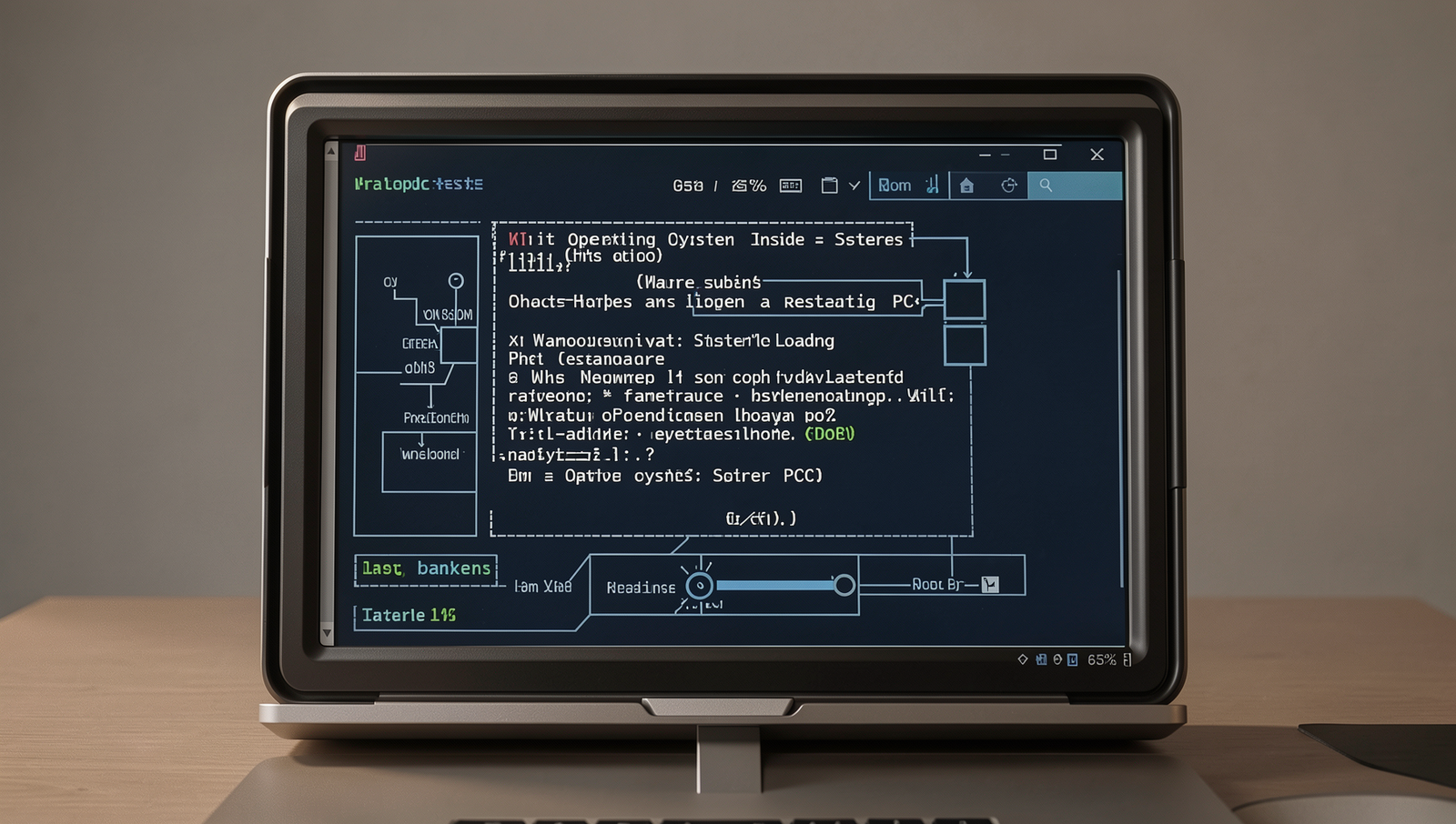
When a PC is restarted, one of the most critical processes that occurs is the loading of the operating system. This process begins immediately after the BIOS or UEFI firmware completes its power-on self-test (POST) and hands control over to the bootloader. The bootloader is responsible for loading the operating system kernel into memory, which is the core component that manages system resources and hardware interactions.
Once the kernel is loaded, it initializes various system services that are essential for the operating system to function properly. These services include device drivers, which allow the operating system to communicate with hardware components such as printers, graphics cards, and network interfaces. The initialization of these services ensures that all hardware is ready for use as soon as the user logs in.
Another important step in the operating system loading process is the mounting of file systems. This involves making the storage devices accessible to the operating system so that files and applications can be read and executed. The operating system typically mounts the root file system first, followed by any additional file systems that may be configured. This process can be summarized as follows:
- Loading the kernel into memory
- Initializing system services and drivers
- Mounting file systems
- Preparing user session management
After the file systems are mounted, the operating system prepares for user session management. This includes displaying the login prompt, where users can enter their credentials to access their accounts. The login process is crucial as it ensures that only authorized users can access the system and its resources. Once logged in, the user can interact with the desktop environment and applications, completing the boot process.
Hardware and Software Checks
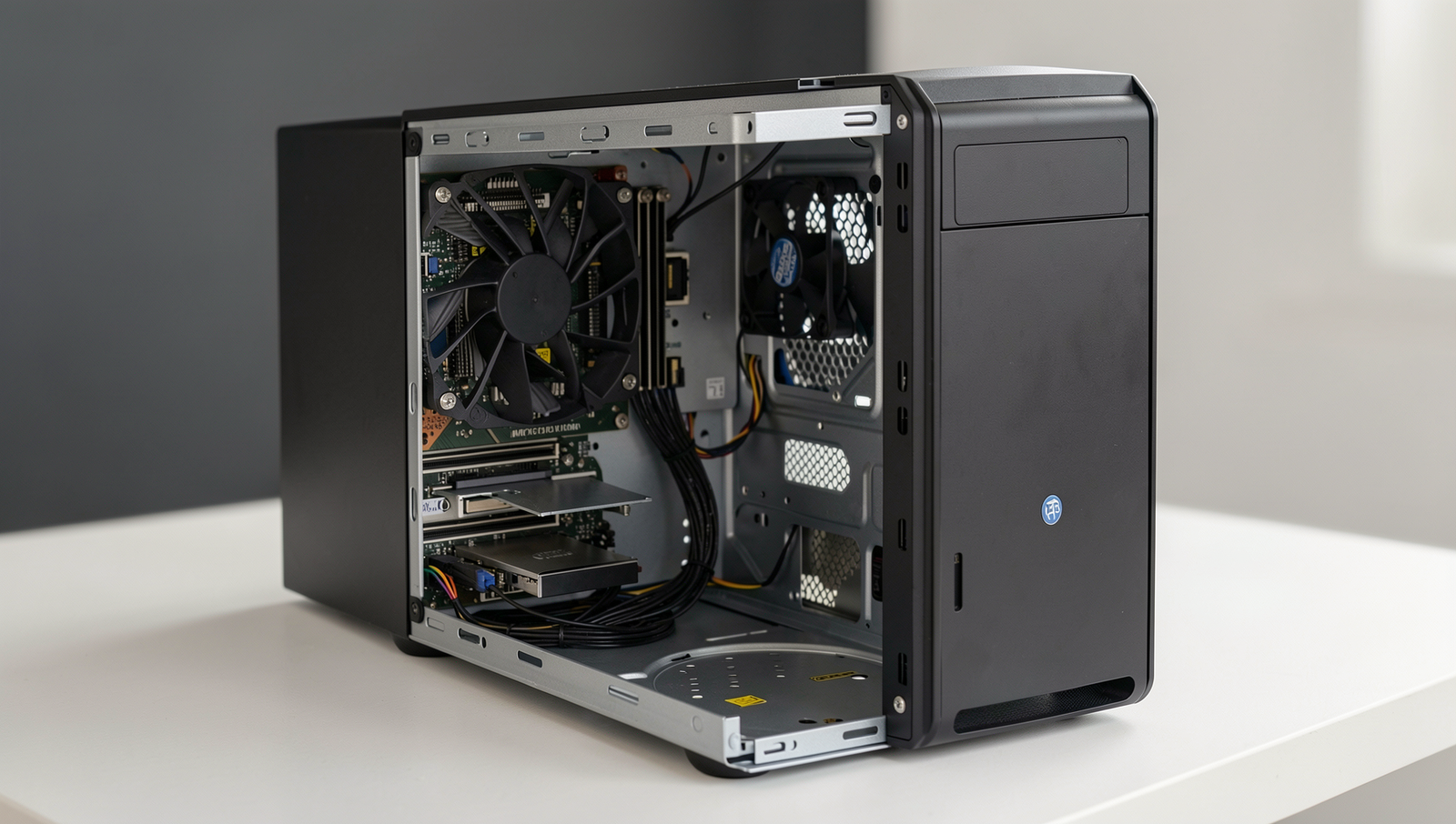
When a PC is restarted, a series of critical hardware and software checks are performed to ensure that the system is functioning correctly. These checks are essential for maintaining the integrity of the computer and preparing it for use. The first step involves the verification of hardware integrity and configuration. During this phase, the system’s BIOS or UEFI firmware conducts a Power-On Self-Test (POST) to check the basic hardware components, such as the CPU, RAM, and storage devices. If any issues are detected, error codes or beeps may indicate the specific problem.
Next, the system checks for updates and system integrity. This step is crucial as it ensures that the operating system and installed applications are up to date. The system may connect to the internet to download any pending updates. For example, a Windows PC might execute the following command to check for updates:
wuauclt /detectnowAdditionally, running diagnostic tools and scripts is a common practice during a restart. These tools help identify any underlying issues that may not be immediately apparent. For instance, a user might run a disk check using the command:
chkdsk /fFinally, loading essential drivers for hardware compatibility is a vital part of the restart process. Drivers are software components that allow the operating system to communicate with hardware devices. If a driver is outdated or missing, the system may not function optimally. To ensure that all drivers are current, users can utilize device management tools or run commands such as:
pnputil /enum-driversIn summary, the hardware and software checks performed during a PC restart are fundamental to ensuring a smooth and efficient computing experience. These processes help maintain system stability and performance, allowing users to work without interruptions.
User Environment Setup
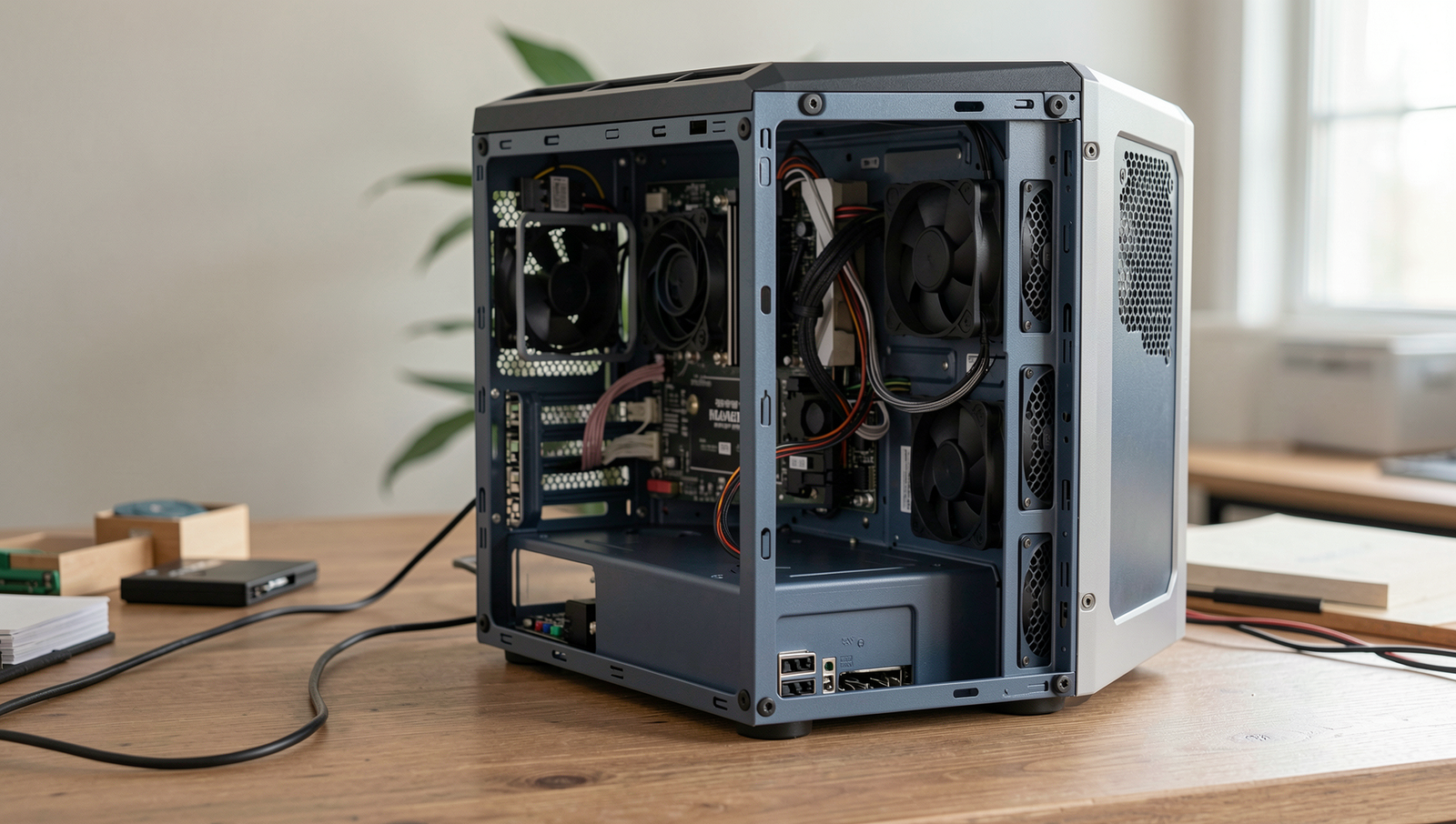
When a PC is restarted, one of the critical phases is the user environment setup. This process ensures that the system is prepared for user interaction by restoring various settings and launching necessary applications. Understanding this phase can provide insights into how a computer operates efficiently after a reboot.
First, the restoration of user settings and preferences is essential. When a user logs back into their account, the operating system retrieves personalized settings such as desktop backgrounds, theme colors, and application configurations. This restoration is crucial for providing a familiar and comfortable user experience. For example, if a user prefers a dark mode interface, the system will automatically apply this preference upon login.
Next, the system begins launching startup applications and services. These are programs that are set to run automatically when the computer starts. Common examples include antivirus software, cloud storage applications, and messaging services. Users can manage these startup items through system settings. To view and modify startup applications on Windows, one can use the following command:
msconfigAfter the applications are launched, the PC establishes network connections. This step involves connecting to Wi-Fi or Ethernet networks, allowing the system to access the internet and other network resources. The operating system checks for available networks and may prompt the user for credentials if necessary. A practical example of this is when a user returns to their PC and needs to reconnect to their home Wi-Fi after a restart.
Finally, the system finalizes its readiness for user interaction. This includes ensuring that all applications are fully loaded and that the desktop is responsive. Users can then begin their tasks seamlessly, knowing that their environment is set up just as they left it before the restart.
Conclusion
Understanding what happens inside a restarting PC is crucial for both casual users and tech enthusiasts. During a restart, the operating system clears the memory, shuts down all running processes, and reloads essential system files. This process not only helps in resolving minor glitches but also enhances performance by freeing up resources that may have been bogged down by long-term use. By grasping these concepts, users can better appreciate the importance of regular restarts in maintaining their computer’s health.
Moreover, knowing the intricacies of a PC restart can empower users to troubleshoot issues effectively and make informed decisions regarding system maintenance. If you encounter persistent problems, consider implementing a restart as a first step in your troubleshooting process. Ultimately, recognizing what happens inside a restarting PC can lead to a more efficient and reliable computing experience, ensuring that your device runs smoothly and effectively for years to come.
Frequently Asked Questions
What happens to the data in RAM during a restart?
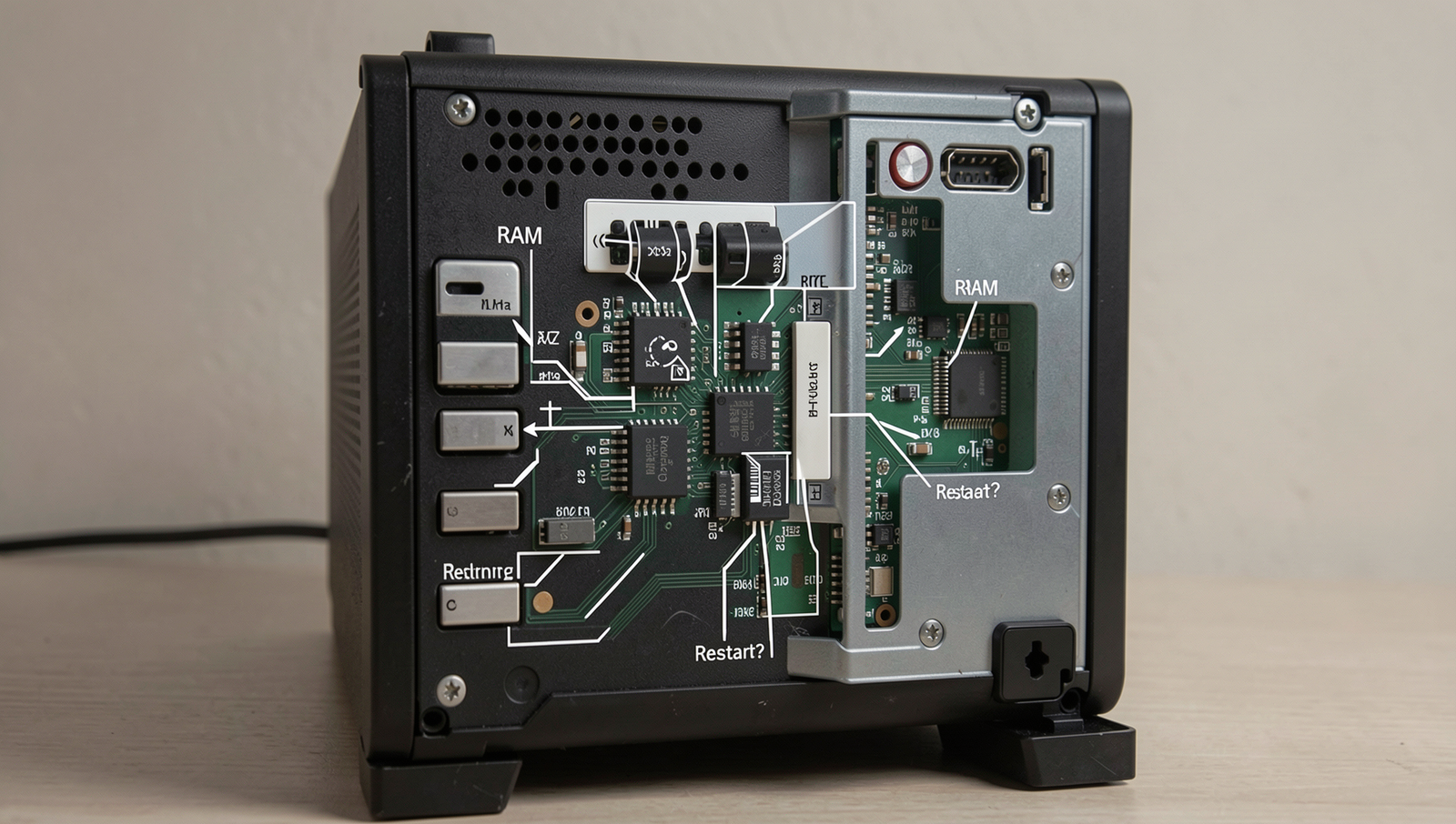
During a restart, the data stored in RAM is cleared. This is because RAM is volatile memory, meaning it requires power to maintain its data. When the power is interrupted during a restart, all information is lost, leading to a fresh start.
Does the CPU stop processing during a restart?
Yes, the CPU stops processing during a restart. It halts all ongoing tasks and operations to safely reset the system. This pause allows the computer to clear temporary data.